
WiFi Extender Guide: How to Boost Your Home Network in 2026
Author: Sanso Uka
If you’ve ever found yourself standing in a corner of your house holding your phone up like you’re trying to catch a signal from outer space, you already understand why a WiFi extender might be exactly what you need. Dead zones — those frustrating spots where your internet connection crawls or disappears entirely — are one of the most common complaints in modern homes, and they’re surprisingly easy to fix once you understand what’s actually going on.
A WiFi extender (also called a WiFi repeater or range extender) is a device that picks up your existing wireless signal and rebroadcasts it, effectively expanding your network’s coverage. Whether you’re streaming in the bedroom, working from a home office, or gaming in the basement, getting consistent connectivity throughout your home is no longer a luxury — it’s a necessity.
In this guide, we’ll walk through how WiFi extenders work, when you actually need one, how to choose the right model, set it up correctly, and squeeze the best performance out of it. No technical degree required.

What Is a WiFi Extender and How Does It Work?
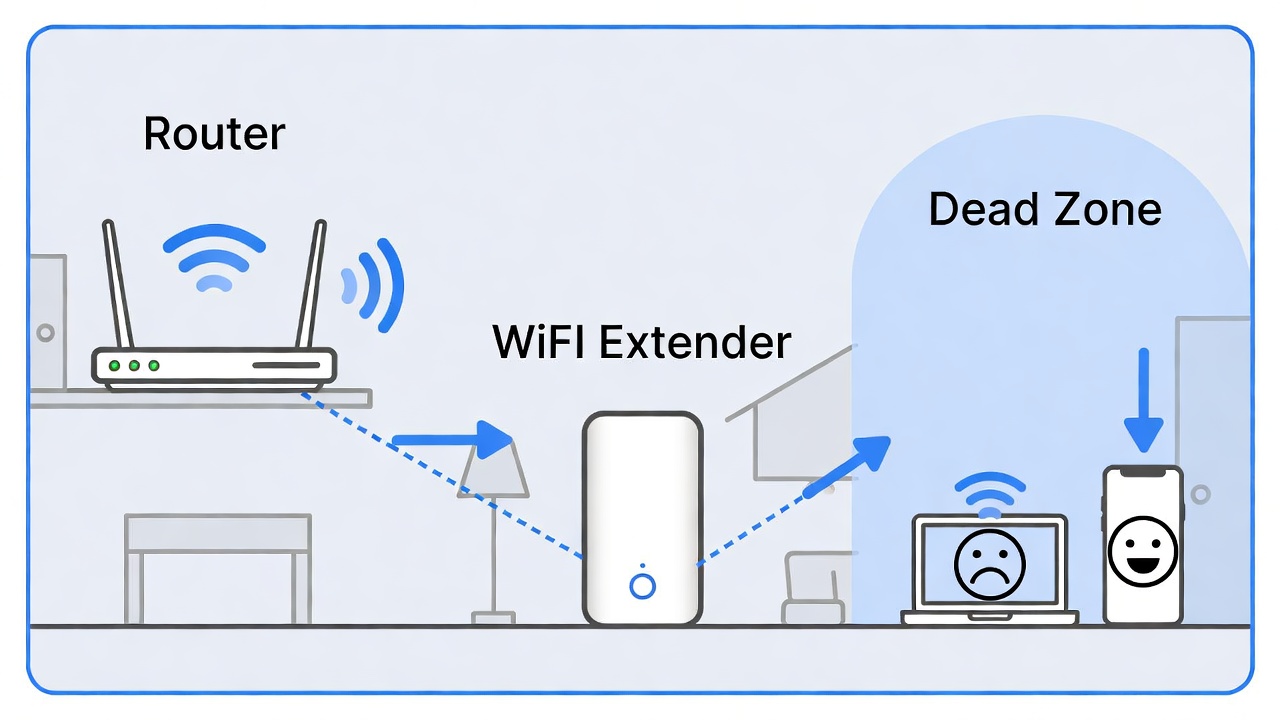
A WiFi extender is a standalone device that connects to your existing router’s signal wirelessly or via an ethernet cable and rebroadcasts that signal at a higher strength to areas your router can’t reach on its own. Think of it like a relay station — it captures what your router is broadcasting, amplifies it, and sends it forward into new territory.
Most extenders operate on either the 2.4GHz or 5GHz frequency bands, and modern dual-band models can use both simultaneously. The 2.4GHz band travels farther and passes through walls more easily, while 5GHz offers faster speeds over shorter distances. Some premium extenders even support WiFi 6 (802.11ax), which dramatically improves performance in homes with many connected devices.
It’s worth noting that a WiFi extender creates a secondary network that devices must connect to separately from your main router’s network. This differs from a mesh WiFi system, which creates one seamless network across multiple nodes. For most users, a single extender placed strategically is an affordable and effective solution — but understanding this distinction helps you set realistic expectations from the start.
In practice, a good-quality extender placed at the midpoint between your router and the dead zone can increase usable coverage by 2,000–5,000 square feet, depending on your home’s layout and construction materials.
Signs You Need a WiFi Extender in Your Home
You don’t need a network engineer to tell you when your WiFi isn’t cutting it. There are some pretty clear signals — no pun intended — that a WiFi extender would make a meaningful difference in your daily life.
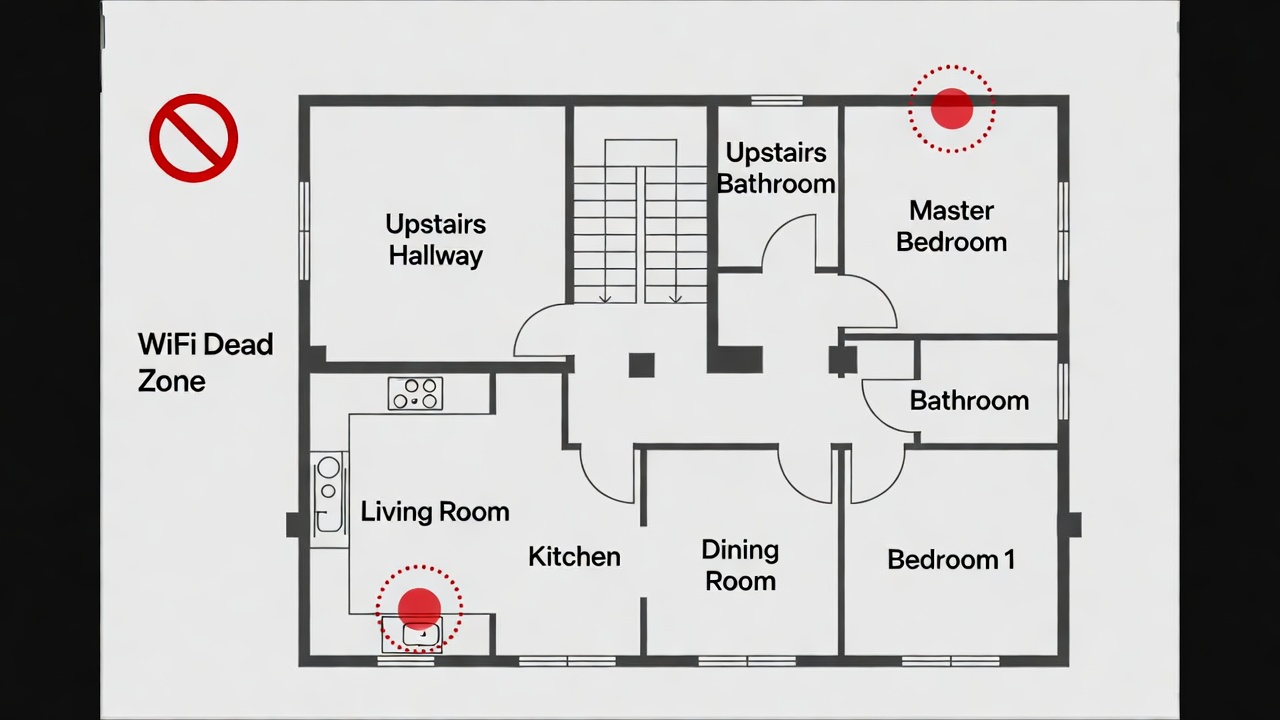
The most obvious sign is a dead zone: a room or area where your device either can’t connect at all or connects so slowly that basic tasks like loading a webpage feel like a test of patience. Thick walls, floors, concrete, and metal-heavy construction are common culprits that block or weaken WiFi signals significantly.
Another sign is inconsistent speeds. You might have fast internet in the living room but experience buffering or drops in the kitchen, garage, or upstairs bedroom. According to Cisco’s annual internet report, the average home now has over 10 connected devices — and that number keeps climbing. More devices competing for a weakened signal amplifies connection problems fast.
- Slow speeds in specific rooms: If your device shows full bars in one room and one bar in another, signal degradation is happening between the two points.
- Frequent disconnections: Devices dropping from the network repeatedly, especially when you move through the house, suggest your coverage area is insufficient.
- Outdoor connectivity issues: If you work on a patio, deck, or backyard and struggle to get a reliable signal, an extender can push coverage outside.
- Two-story homes or basements: Routers placed on one floor often struggle to reach the others, particularly through concrete or steel-reinforced ceilings.
If any of these apply to your situation, a WiFi extender is likely the most cost-effective first step before committing to a full mesh system upgrade.
How to Choose the Right WiFi Extender for Your Needs
Not all WiFi extenders are created equal, and picking the wrong one can leave you disappointed. The good news is that once you know what to look for, narrowing down your options becomes much more manageable. If you’re also in the market for a complete home tech upgrade, our Gadgets section covers a wide range of smart home and connectivity devices worth exploring.
The first thing to consider is your existing router’s WiFi standard. If your router supports WiFi 5 (802.11ac), pairing it with a WiFi 5 extender makes sense. However, if you’ve recently upgraded to a WiFi 6 router, investing in a WiFi 6 extender future-proofs your setup and delivers noticeably better multi-device performance.
Key factors to evaluate when choosing a WiFi extender:
- Frequency bands: Dual-band extenders (2.4GHz + 5GHz) offer better flexibility than single-band models. Tri-band models add a dedicated backhaul channel for even better performance.
- Speed rating: Extenders are rated in Mbps. An AC1200 extender supports up to 1200Mbps total — adequate for most households. For heavy streaming or gaming households, look at AC1750 or above.
- Ethernet port: Some extenders include a wired ethernet port, which is useful for connecting smart TVs, game consoles, or desktop PCs directly — giving you the best of both worlds.
- Form factor: Plug-in extenders are compact and easy to use. Desktop extenders with external antennas often provide better range but take up more space.
- App-based management: Modern extenders from brands like TP-Link, Netgear, and ASUS offer mobile apps for easy setup and monitoring, which is a genuine quality-of-life improvement.
While exact prices vary depending on retailer and season, entry-level dual-band extenders typically range from $25–$60, mid-range models from $60–$120, and premium tri-band or WiFi 6 extenders from $120–$250. For most apartments and medium-sized homes, a mid-range dual-band extender hits the sweet spot between performance and price.
If you’re building out a smarter home, pairing your extender setup with devices covered in our Home Automation guide can help you create a more connected, seamless living environment.
Step-by-Step: How to Set Up a WiFi Extender Correctly
One of the most common reasons people feel disappointed with their WiFi extender isn’t the device itself — it’s where and how they set it up. Placement and configuration make or break the experience. From hands-on experience testing several popular models, the setup process is genuinely beginner-friendly when you follow a few key principles.
The golden rule of placement is the midpoint principle: position your extender halfway between your router and your dead zone. If you place it too close to the dead zone, it won’t receive a strong enough signal to boost. If it’s too close to the router, the coverage extension won’t reach far enough. A signal strength of 50–70% on the extender’s indicator is the ideal target at its location.
Basic setup process (most extenders follow this pattern):
- Plug the extender in near your router and power it on.
- Connect your phone or laptop to the extender’s temporary setup network (listed on the device label).
- Open a browser or the manufacturer’s app and follow the on-screen setup wizard.
- Select your home WiFi network and enter your password when prompted.
- Wait for the connection to establish — most devices use LED indicators to confirm.
- Once configured, unplug the extender and reposition it at the midpoint location.
- Verify connection quality using the LED signal indicator or the companion app.
Most setups take between 10–15 minutes and require no technical background. That said, if your router uses older security protocols like WEP, you may encounter compatibility issues with newer extenders — updating your router’s firmware beforehand resolves most of these problems.
Professionals working in this area often observe that users skip the step of actually testing signal quality at the extender’s placement location before finalizing it. Taking an extra five minutes to check the indicator light or app reading can save hours of troubleshooting later.
WiFi Extender vs Mesh Network: Which Should You Choose?
This is probably the question we get asked most often in the home networking space, and the answer genuinely depends on your situation. Both solutions address poor WiFi coverage — but they do it in fundamentally different ways with different tradeoffs in cost, complexity, and performance.
A WiFi extender is a single-device, budget-friendly solution that works with your existing router. It creates a secondary network that extends coverage into hard-to-reach areas. The limitation is that devices don’t automatically hand off between the main router and the extender — you may need to manually switch networks depending on where you are. For single dead zones in an otherwise well-covered home, this is usually completely fine.
A mesh WiFi system, on the other hand, replaces your router with a set of nodes that communicate with each other and create one unified, seamless network. Your devices automatically connect to the strongest node as you move through your home. This delivers a smoother, more consistent experience — but costs significantly more, typically starting at $150 for a basic two-node system and going well above $500 for premium setups.
Based on real use cases: a WiFi extender works best for homes under 2,500 sq ft with one or two specific problem areas. A mesh system is worth the investment for large homes (3,000+ sq ft), multi-story buildings, or households with 15+ connected devices. If you’re frequently experiencing drops, lag in online gaming, or video call issues throughout the home, upgrading to a mesh system may be the more permanent solution.
For gamers specifically, check out our PC and Console Gaming resources where we break down network optimization tips that can seriously improve your online gaming experience alongside a solid extender setup.
Common WiFi Extender Mistakes and How to Avoid Them
Even with the right hardware, it’s surprisingly easy to undermine your extender’s performance with a few avoidable mistakes. Knowing what not to do is just as important as knowing what to do — and it can save you from a lot of unnecessary frustration.
The number one mistake is placing the extender too far from the router. When the extender receives a weak signal, it can only rebroadcast that weak signal — it can’t improve what it doesn’t have. A good rule of thumb: if your extender is receiving less than 40% signal strength from the router, move it closer.
Another common issue is placing the extender near signal-blocking objects. Metal appliances, microwaves, baby monitors, and even thick concrete walls significantly degrade WiFi signals. Avoid placing your extender in cabinets, behind large furniture, or near kitchen appliances. Open, elevated spaces with line-of-sight to the router work best.
People also frequently forget to update their extender’s firmware after setup. Manufacturers regularly push updates that improve performance, fix bugs, and address security vulnerabilities. Checking for firmware updates through the app or web interface shortly after initial setup — and periodically afterward — is a simple habit that pays off.
Finally, using an extender with a different WiFi standard than your router (for example, a WiFi 5 extender on a WiFi 6 router) doesn’t break anything, but it does cap your extended network’s performance at the older standard. While exact figures may vary depending on context, this can result in noticeably slower speeds in the extended coverage area compared to what your router is capable of delivering directly.

Advanced Tips to Get the Most from Your WiFi Extender
Once your extender is up and running, there are several things you can do to push its performance even further. These aren’t complicated tweaks — most take just a few minutes — but they make a real, measurable difference in day-to-day connectivity.
Consider giving your extender’s network the same SSID (network name) and password as your main router. While this doesn’t technically create a seamless roaming experience like a mesh system, many modern devices are smart enough to automatically connect to whichever signal is stronger. This eliminates the need to manually switch networks as you move around your home.
If your extender has an ethernet port, use it for your most demanding devices. Wired connections eliminate interference entirely and deliver maximum, stable speeds. Plugging in a gaming console, smart TV, or desktop PC via ethernet through your extender gives those devices a direct, reliable line to the internet — a significant upgrade over wireless for bandwidth-heavy activities.
For households investing in smart home technology, keeping your IoT devices (smart bulbs, thermostats, security cameras) on the 2.4GHz band while dedicating the 5GHz band to laptops and streaming devices helps distribute the load more efficiently. Our Smart Lighting and Security guide has more details on managing smart home devices alongside a home network setup.
Lastly, if you’re using AI-powered smart home assistants like Amazon Alexa or Google Home, a stable extended network ensures those devices respond reliably from every room. You can explore more about this in our Voice Assistants section, which covers tips on optimizing smart home connectivity.
Top WiFi Extender Brands Worth Considering in 2025
The market for WiFi extenders is competitive, and a handful of brands consistently stand out for reliability, ease of use, and performance. While this isn’t an exhaustive review, knowing the major players helps narrow down your search considerably.
TP-Link is arguably the most popular consumer brand in this space, known for offering excellent value across budget and mid-range models. Their RE series (like the RE705X with WiFi 6 support) offers strong performance at reasonable price points, and the Tether app makes setup and management genuinely painless.
Netgear targets users who want a bit more performance and features. Their EX series extenders support speeds up to AC2200 and include built-in ethernet ports on most models. Netgear’s Nighthawk line steps up further for power users who need serious range and throughput.
ASUS is a solid choice for users who already own ASUS routers, as their extenders integrate seamlessly through the same AiMesh ecosystem, effectively transforming them into mini mesh nodes. This is one of the more elegant upgrade paths available without switching hardware entirely.
Linksys and Eero lean more toward mesh systems but offer extender-compatible options for those already in their respective ecosystems. For users considering a step up from a traditional extender to a mesh system, Eero’s entry-level nodes are competitively priced and extremely user-friendly.
If you’re also evaluating broader home technology upgrades, our Smartphones and Accessories section covers complementary devices that work well alongside a boosted home network setup.
Conclusion: Is a WiFi Extender the Right Solution for You?
A WiFi extender is one of the most practical, affordable upgrades you can make to your home network. For the majority of households dealing with one or two dead zones, a well-chosen and correctly placed extender solves the problem cleanly — no rewiring, no ISP visit, no complicated configuration.
The key takeaways are straightforward: understand what an extender does and doesn’t do, choose a model that matches your router’s capabilities, place it at the midpoint between your router and the problem area, and take a few minutes to optimize settings after setup. These steps, done right, deliver a genuinely improved WiFi experience throughout your home.
For larger homes or households with extensive smart home setups, a mesh system may ultimately offer a better long-term solution — but even then, starting with a high-quality extender is a reasonable and cost-effective first step. Technology decisions should match your actual needs, not just what’s trending.
Stay connected to the Sanso Uka Tech News section for ongoing coverage of home networking updates, new device releases, and practical guides to help you get the most from your technology investments.
🛒 Recommended Products for WiFi Extenders
Based on the WiFi extender guidance discussed in this article, we’ve curated a selection of top-rated products that deliver exceptional performance and value. These recommendations are carefully chosen to help you implement the solutions that best fit your needs and budget.
Frequently Asked Questions About WiFi Extenders
What is the difference between a WiFi extender and a WiFi booster?
The terms “WiFi extender,” “WiFi booster,” and “WiFi repeater” are often used interchangeably in marketing, but they generally describe the same type of device: hardware that receives your existing WiFi signal and rebroadcasts it to extend coverage. Some manufacturers use “booster” more loosely, so always check the technical specifications to confirm how the device actually works.
Does a WiFi extender slow down internet speed?
A WiFi extender can reduce effective throughput — often by as much as 50% on single-band models — because it uses the same radio to receive and transmit data simultaneously. Dual-band and tri-band extenders mitigate this by using separate channels for communication. For most browsing, streaming, and smart home tasks, the speed reduction is barely noticeable in practice.
How far can a WiFi extender reach?
Most consumer WiFi extenders can extend coverage by 1,500–5,000 square feet depending on the model, placement, and environmental obstacles. Walls, floors, and metal objects all reduce effective range. Positioning the extender in an open area with line-of-sight to the router maximizes performance.
Can I use multiple WiFi extenders in the same home?
Yes, it is technically possible to use multiple extenders, but performance degrades with each hop in the chain. Extending from a router to extender one, and then to extender two, amplifies any signal loss and latency. For multi-zone coverage needs, a mesh WiFi system is a more reliable and efficient solution.
Does a WiFi extender work with any router?
Most WiFi extenders are designed to work with any standard router, regardless of brand. They connect using standard WiFi protocols (802.11 a/b/g/n/ac/ax). However, for best results, it’s recommended to use an extender that supports the same WiFi standard as your router.
What is the best placement for a WiFi extender?
The ideal placement is at the midpoint between your router and the area with poor coverage. The extender should receive a signal strength of at least 50–70% from the router at its location. Avoid placing it inside cabinets, near microwaves, or behind thick walls, as these obstacles reduce signal quality.
Is a WiFi extender the same as a mesh system?
No. A WiFi extender creates a separate network that devices must connect to manually, while a mesh system creates one unified network where devices roam automatically between nodes. Mesh systems deliver a more seamless experience but cost significantly more. An extender is often the right first step for most households.
Can a WiFi extender improve online gaming performance?
A WiFi extender can improve gaming performance in areas previously affected by weak signal — particularly by reducing lag and disconnections caused by poor coverage. For the best gaming experience, connecting a console or PC via ethernet through the extender’s LAN port delivers the most stable results.
How do I know if my WiFi extender is working correctly?
Most extenders include LED indicator lights that display signal strength and connection status. Green or solid lights typically indicate a healthy connection. You can also use the manufacturer’s app or a free app like WiFi Analyzer on your smartphone to measure actual signal strength and speeds in previously problematic areas.
How often should I update my WiFi extender’s firmware?
It’s good practice to check for firmware updates shortly after initial setup and then every 3–6 months. Many modern extenders support automatic updates through their companion apps. Keeping firmware current ensures you benefit from performance improvements, bug fixes, and important security patches.
- Best Cheap Smartwatch Under $50
 Best Cheap Smartwatch Under $50: 5 Reliable Picks for 2026 By Sanso Uka If you’re hunting for the best… Read more: Best Cheap Smartwatch Under $50
 - Best Dash Cams of 2026
 Best Dash Cams of 2026: Top Picks for Every Driver and Budget By Wanderson Nogueira Martins Choosing the best… Read more: Best Dash Cams of 2026
 - How to Transfer Data to New Phone
 How to Transfer Data to a New Phone: A Step-by-Step Guide for 2026 By Sanso Uka Upgrading to a… Read more: How to Transfer Data to New Phone
 - Senior-Friendly Smartphones 2026
 Senior-Friendly Smartphones 2026: Best Overall Picks for Every Budget By Sanso Uka Senior-friendly smartphones in 2026 have come a… Read more: Senior-Friendly Smartphones 2026
 - Best Mechanical Keyboards in 2026
 Best Mechanical Keyboards in 2026 Best Mechanical Keyboards in 2026: Top Picks for Every Budget and Use Case By… Read more: Best Mechanical Keyboards in 2026
 - Best Monitor for Home Office 2026
 Best Monitor for Home Office 2026: Expert Picks & Buying Guide By Sanso Uka Your monitor is the window… Read more: Best Monitor for Home Office 2026
 - How to Extend Smartphone Battery Life
 How to Extend Smartphone Battery Life: 12 Practical Tips That Actually Work By Sanso Uka You unplugged your phone… Read more: How to Extend Smartphone Battery Life
 - Best E-Readers in 2026
 Best E-Readers in 2026: Which One Is Actually Worth Buying? Best E-Readers in 2026: Which One Is Actually Worth… Read more: Best E-Readers in 2026
 - Refurbished vs New Laptop
 Refurbished vs New Laptop: Which Should You Buy in 2026? By Sanso Uka When you’re in the market for… Read more: Refurbished vs New Laptop
 - Best Gaming Headsets Under $100
 Best Gaming Headsets Under $100 in 2026: Top Picks for Every Platform By Sanso Uka Finding the best gaming… Read more: Best Gaming Headsets Under $100
 - How Long Do Laptops Last
 How Long Do Laptops Really Last? A Practical Guide to Lifespan By Sanso Uka If you are shopping for… Read more: How Long Do Laptops Last
 - Best Portable Charger 2026
 Best Portable Charger in 2026: Top Power Banks for Every Budget and Use Case By Wanderson Nogueira Martins Finding… Read more: Best Portable Charger 2026