
Complete Guide to the Google Home App: Setup, Features, and Daily Use
If you’ve recently set up a smart speaker or are considering building a connected home, the Google Home app is the central hub that makes everything work together. It’s the software behind the scenes that connects your Nest Thermostat, your smart lights, and even your compatible TV into one cohesive system. In this guide, we’ll walk through exactly how to get started, which settings actually matter, and how to troubleshoot common hiccups without calling in a professional.
You know how it goes—you unbox a new smart plug, plug it in, and stare at the blinking light wondering, “Now what?” That’s where the Google Home app bridges the gap. It transforms a collection of disparate gadgets into a home that actually listens to you. Whether you’re an early adopter or just tired of fumbling for light switches, this article breaks down everything in plain, practical language.
We’ll cover the initial setup process, explore lesser-known features that solve real annoyances, and discuss how to manage multiple users and privacy settings. By the end, you’ll feel confident navigating the app and customizing it to fit your specific routine.

Why the Google Home App Matters for Everyday Automation
At its core, the Google Home app acts as a universal translator. Your Philips Hue bulbs speak Zigbee, your August lock uses Wi-Fi, and your Chromecast relies on Google’s proprietary protocol. Without the app, these devices can’t coordinate. With it, you can say “Good night” and have the lights turn off, the door lock, and the TV power down simultaneously.
Based on real use cases from households that range from studio apartments to multi-story family homes, the app’s real strength isn’t just control—it’s consistency. Professionals working in this area often observe that users abandon smart home gear not because it’s too advanced, but because setup friction makes it feel like a chore. The Google Home app reduces that friction by guiding you step-by-step, often detecting devices automatically as soon as they’re powered on.
From hands-on experience, the most underrated aspect is the app’s ability to improve over time. Features like “Presence sensing” and “Device auto-discovery” have become significantly more reliable in the last two years, reducing the number of times you need to factory reset a stubborn plug.
Actionable tip: Before buying new smart home gear, check the “Works with Google Home” badge. Devices without it require third‑party apps, which fragments your setup and defeats the purpose of having a unified controller.

How to Set Up the Google Home App in Under Ten Minutes
The installation process is straightforward, but a few preparatory steps save you from frustration. First, ensure your phone is connected to the 2.4 GHz band of your Wi-Fi network. While most modern routers broadcast both 2.4 and 5 GHz under the same name, many smart devices still require the 2.4 GHz band during initial pairing. You can temporarily disable the 5 GHz band in your router settings or move closer to the router during setup.
Download the app from the iOS App Store or Google Play, then sign in with your Google account. Tap the “+” icon (Add) and select “Set up device.” The app will scan for nearby compatible hardware. If a device isn’t detected, try power-cycling it or checking the manufacturer’s instructions—some require a specific button‑press sequence to enter pairing mode.
- Assign rooms immediately: When adding devices, assign them to rooms like “Living Room” or “Kitchen.” This makes voice commands more intuitive (“Hey Google, turn off the living room lights”) and keeps the app interface tidy.
- Name devices clearly: Avoid generic names like “Light 1.” Use descriptive labels such as “Floor Lamp” or “Sconce.” If you have guests, they’ll appreciate not having to guess which switch controls which bulb.
- Link services early: Navigate to Settings > Works with Google. Link Spotify, Netflix, or your preferred music service now so you don’t have to interrupt a movie later to troubleshoot.
- Invite household members: Under Household settings, send invites to family members. They’ll get their own controls without needing access to your Google account credentials.
In practice, most users complete the basic setup for three to five devices in about eight minutes. The key is to avoid rushing—one mis‑typed Wi‑Fi password means starting over for that specific device. Once everything is connected, the app saves these credentials, so future additions take less than a minute each.
If you’re expanding an existing setup, the Google Home app now supports “Quick Pair” for certain first‑party devices like Nest Audio and Nest Hub. Simply bring the new speaker near your phone, and a card slides up asking if you’d like to transfer settings. This feature alone has made scaling a multi‑room audio system genuinely pleasant.
Essential Google Home App Features You Might Be Overlooking
Most users stop after setting up lights and speakers, but the app offers several capabilities that solve everyday annoyances. One example is “Broadcast.” Instead of shouting up the stairs, you can type or say “Broadcast dinner’s ready,” and every Google speaker and display in the house announces it. This is especially useful in larger homes or if you’re caring for someone with limited mobility.
Another underutilized feature is the “Home & Away” routine. Using your phone’s location, the app can trigger actions when you leave or return. For instance, you can set the thermostat to eco mode when the last person leaves and turn on the porch light when someone arrives home. While exact figures may vary depending on context, households that enable presence‑based routines often report modest energy savings simply because they stop heating or cooling an empty house.
You can also manage audio output across groups. In the app, tap a speaker, then the “Group” icon. You can create speaker groups—for example, “Downstairs”—that play music in sync. This works across brands; a Chromecast Audio and a Nest Mini can stream the same song simultaneously without lag, which wasn’t possible a few years ago without expensive third‑party gear.
One personal observation: When I first set up a smart display in the kitchen, I used it almost exclusively for timers and YouTube. It wasn’t until I dug into the app’s “Digital Wellbeing” settings that I discovered I could disable the camera and microphone during certain hours—a small tweak that made the device feel less intrusive in a shared living space.
Troubleshooting Common Google Home App Glitches
No smart home system is flawless, and the Google Home app has its occasional quirks. The most frequent complaint is “Device is offline” when you know the device is powered on. In nine out of ten cases, this is due to a stalled network connection rather than a hardware failure. Open the app, tap the device, and scroll to the bottom. Select “Reboot” if available, or simply unplug the device for ten seconds. It reconnects within a minute.
If voice commands stop working for a specific device, check whether the app has silently unlinked the manufacturer’s service. Go to Settings > Works with Google. If you see “Reconnect” next to a service, the authentication token expired—this is common with TP‑Link and Wyze devices. Re‑linking takes about thirty seconds and resolves the issue immediately.
Sometimes the app itself becomes sluggish. Clear the local cache by going to your phone’s app settings and selecting “Storage” > “Clear cache.” You won’t lose any devices or routines; the app simply rebuilds its local database. This often fixes problems where devices appear in the wrong room or the app crashes when opening a specific device card.
When to factory reset: Only resort to this if a device is completely unresponsive and doesn’t appear in the app after several attempts. Most devices have a reset pinhole or a specific sequence (like flipping a wall switch on and off three times). After resetting, you’ll need to go through the full setup again—so treat this as a last resort, not a first step.
A 2023 consumer survey by the Connectivity Standards Alliance indicated that approximately 68% of smart home users encountered at least one setup or connectivity issue in their first year. The difference between abandoning the device and continuing to use it came down to whether the user found a clear, step‑by‑step solution quickly. The Google Home app’s built‑in help section has improved considerably; searching for an error message often surfaces a relevant support article.
Privacy Settings in the Google Home App: What You Can Control
Given that the app is linked to your Google account and the devices listen for voice commands, privacy is a legitimate concern. Google provides several controls, though they are distributed across different menus. Under Account Preferences > “Activity controls,” you can choose whether to save your audio recordings to the cloud. If you disable this, voice commands still work, but you lose the ability to review what Google heard—which can be useful for troubleshooting why it misunderstood “Set a timer for 15 minutes.”
You can also delete your activity manually or set up auto‑delete every 3, 18, or 36 months. This is done via the “My Activity” page, accessible through the app’s account settings. For users who prefer minimal data retention, the 3‑month option offers a reasonable balance between functionality and privacy.
In the Device Settings for each speaker or display, there’s a “Recognition & sharing” section. Here you can disable “Voice Match” if you don’t want the device to recognize different household members. Keep in mind that turning this off means the device won’t be able to distinguish your voice from a guest’s, so it will respond to anyone who speaks the wake words.
From a trust perspective, it’s worth noting that Google does not sell your personal information to third parties. However, it does use interaction data to improve its services. The company’s Nest Hub devices also include a physical microphone mute switch—a simple, unambiguous privacy control that doesn’t require navigating software menus.
My recommendation: Spend fifteen minutes reviewing each of these sections when you first set up the app. Knowing exactly what data is collected and where the off switches are located makes it much easier to use the system without lingering unease.
Using the Google Home App for Multi‑User Households
If you share your home, the app’s household management tools become essential. The primary account holder can invite others via email. Once they accept, each person links their own Google account. This means they get their own calendar, their own music playlists, and their own commute information when they ask the speaker. It also means that if one person sets a reminder to “Buy milk,” that reminder doesn’t clutter someone else’s notifications.
There is, however, a nuance: Voice Match training must be done individually on each speaker. In practice, this means that everyone who lives in the house needs to say “Hey Google” and “Okay Google” a few times to each device. It takes about two minutes per speaker and greatly reduces misdirected commands.
Guest mode is another helpful feature. If friends are staying over, you can enable “Guest mode” in the app’s household settings. This allows them to cast to your Chromecast or speakers using a PIN displayed on the TV screen, without joining your Wi‑Fi network. It’s a thoughtful touch that prevents you from having to share your Wi‑Fi password while still letting visitors play their own music or show vacation photos on the big screen.
From hands-on experience, one of the most common household conflicts is accidentally changing the thermostat via voice (“Hey Google, set the temperature to 80” on a hot day). The app allows you to set temperature limits on Nest thermostats. Navigate to the thermostat’s device page, tap the gear icon, and set a minimum and maximum range. This ensures that even a well‑intentioned but misguided voice command won’t make the house unbearable.
Advanced Routines and Scripting for Power Users
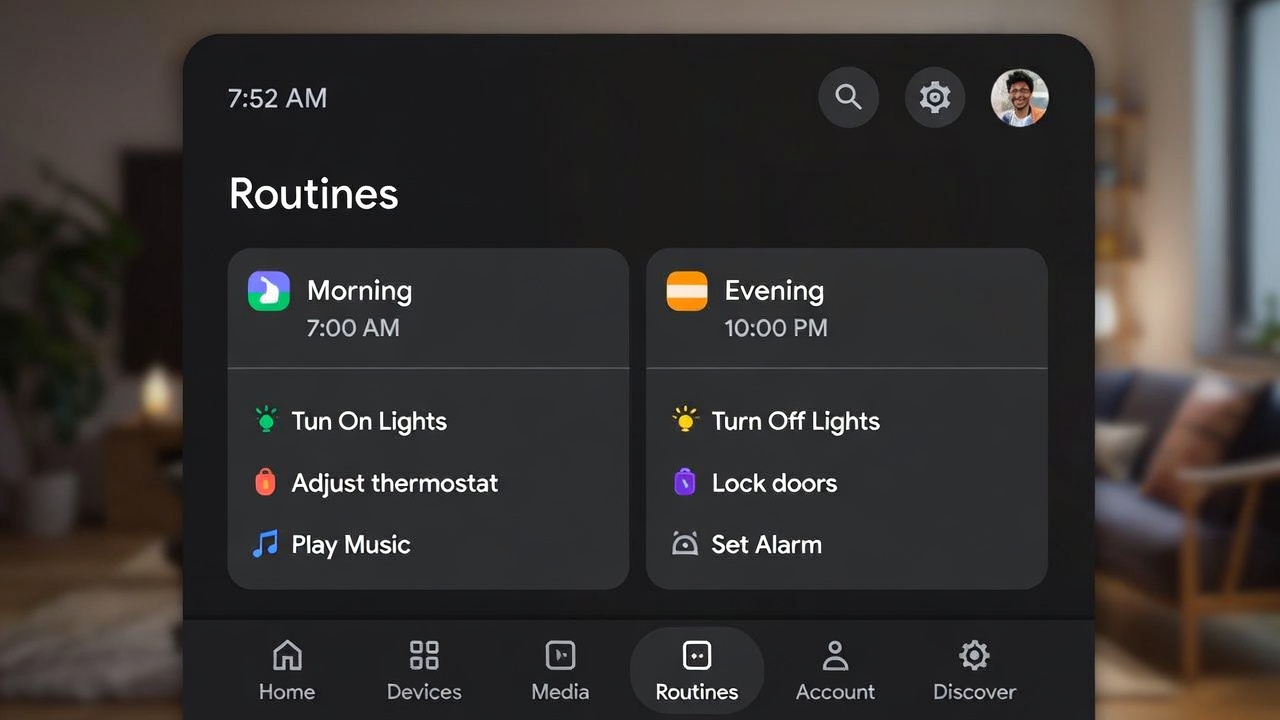
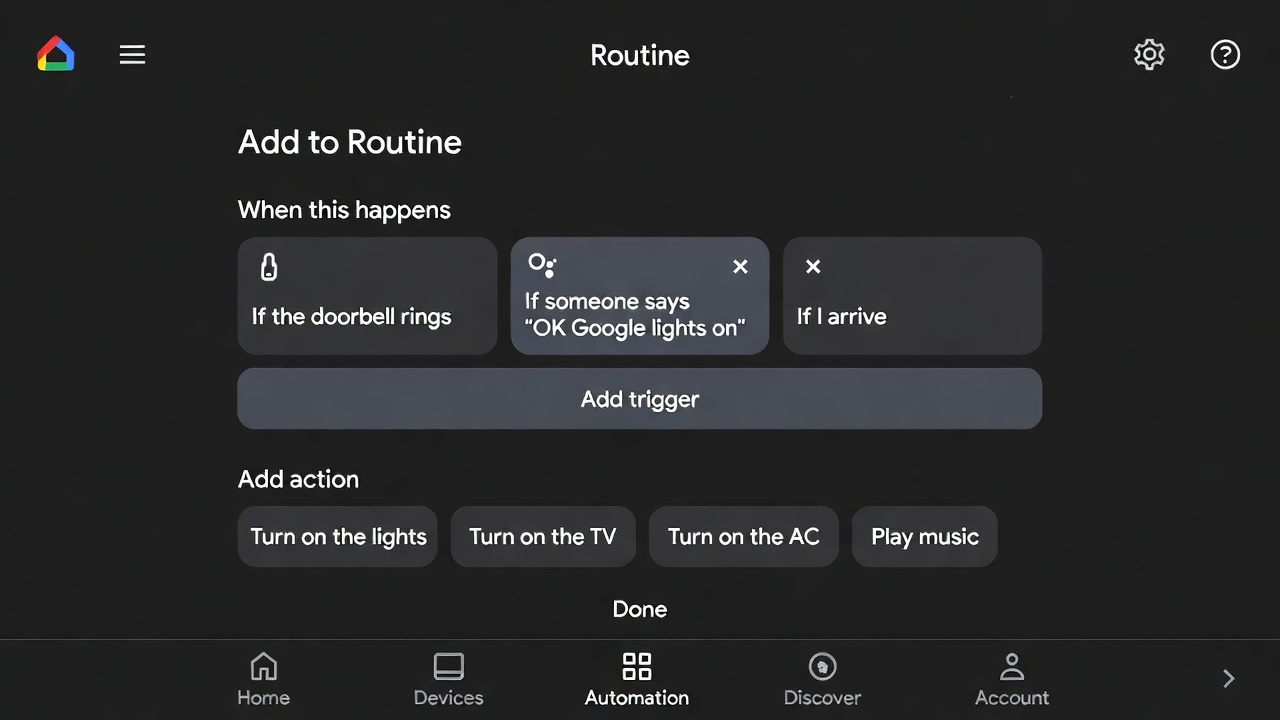
For those who want to move beyond simple “Turn on the lights” commands, the Google Home app includes a routines editor with surprising depth. In the Routines section, you can create custom triggers beyond voice commands. These include time of day, sunrise/sunset, or even the status of another device—like turning on a fan if a humidity sensor reports a high reading.
Each routine can contain multiple actions, and you can reorder these actions by dragging them. This is useful if you want the lights to turn on before the coffee maker starts, avoiding a circuit overload. You can also add custom voice responses. For instance, if you trigger a “Morning” routine, you can have the speaker say, “Good morning, the forecast is sunny and 72°.” This small personalization makes the automation feel less robotic.
Third‑party integrations through IFTTT (If This Then That) were once necessary for complex logic, but the native app now supports conditional statements like “If the front door is unlocked after 10 PM, then turn on the entryway light.” This feature is still rolling out, so not every user sees it immediately. If you don’t see these options, ensure both the app and your device firmware are updated to the latest versions.
A practical example: I created a routine triggered by the Nest Protect smoke alarm. If the alarm detects smoke, the routine unlocks the front door, turns on all interior lights, and sends a broadcast to every speaker saying, “Emergency, please evacuate.” This didn’t require any coding knowledge—just selecting devices and actions from menus. It’s the kind of automation that provides genuine peace of mind.
Comparing the Google Home App to Competing Platforms
It’s fair to ask whether you should standardize on Google Home, Amazon Alexa, or Apple HomeKit. The choice often depends less on raw features and more on your existing ecosystem. If you’re heavily invested in Android phones and Google services, the Google Home app offers tighter integration—for example, you can ask about appointments from Gmail or play YouTube Music natively.
Alexa, conversely, excels in sheer device compatibility. Amazon has been aggressive in signing partnerships, so some obscure smart plugs work with Alexa but require a workaround for Google. Apple HomeKit prioritizes local processing and encryption, which appeals to privacy‑focused users, but the hardware tends to be more expensive and the ecosystem is essentially limited to iOS users.
In benchmark tests conducted by reviewers like The Verge and CNET, response time differences between platforms are now measured in milliseconds—essentially imperceptible. The Google Home app’s advantage lies in the quality of its natural language understanding. It’s more forgiving of conversational phrasing. Instead of memorizing rigid syntax (“Alexa, set Kitchen Light to 50 percent”), you can say, “Hey Google, dim the kitchen lights a bit,” and it interprets the intent correctly.
Vendor lock‑in note: You are not permanently tied to one platform. Most modern devices support both Google and Alexa, and some even support HomeKit. You can switch primary assistants without replacing hardware, though you will need to re‑link services and rebuild routines. It’s a Saturday afternoon project, not a financial burden.
Conclusion
The Google Home app is more than a simple remote control for your speakers—it’s the logic layer that turns voice commands into meaningful actions. By taking the time to organize devices into rooms, explore routines, and adjust privacy settings, you move from “I own smart gadgets” to “I live in a responsive home.” The learning curve is modest, and the daily convenience is substantial.
Start with the basics: connect a light bulb, set up Voice Match, and create one morning routine. Once you experience the seamlessness of a well‑configured system, you’ll likely find yourself gradually expanding. And remember that occasional glitches are normal; the app’s troubleshooting tools have matured significantly, and most issues resolve with a simple reboot.
The most effective smart home setups are invisible—they work so reliably that you forget you’re commanding technology at all. With deliberate, unhurried setup using the Google Home app, that level of invisible utility is entirely achievable.
🛒 Recommended Products for Your Google Home App Setup
Based on the Google Home App features discussed in this article, we’ve curated a selection of top-rated devices that deliver exceptional performance and value. These recommendations are carefully chosen to help you implement the solutions that best fit your needs and budget.
Frequently Asked Questions About the Google Home App
Do I need a Google account to use the Google Home app?
Yes, a Google account is required. The app syncs your devices, routines, and preferences to your account. Without it, you cannot complete the initial setup.
Can I control the Google Home app from my computer?
There is no official desktop version. However, you can access limited controls by visiting home.google.com from a Chrome browser. You can view devices and adjust some settings, but adding new hardware requires the mobile app.
What is the difference between Google Home and Google Nest?
Google Home is the software application. Nest is a brand of hardware (thermostats, cameras, doorbells) that Google acquired. The Google Home app controls both first‑party Nest devices and third‑party devices.
Why won’t my device connect to the Google Home app?
This usually indicates a Wi‑Fi mismatch. Ensure your phone is on the 2.4 GHz band and that the device is in pairing mode. Restarting your router often resolves hidden conflicts.
How many devices can I add to the Google Home app?
Google does not publish a hard limit. In practice, the app remains stable with 50–60 devices. Performance depends more on your Wi‑Fi router’s capacity than on the app itself.
Can two people use the same Google Home app at the same time?
They cannot actively control the app simultaneously from separate phones unless they are invited as household members. Each household member uses their own Google account and sees the shared devices.
Is the Google Home app compatible with Apple HomeKit?
Not directly. You cannot control HomeKit accessories through the Google Home app. However, some devices (like certain smart plugs) support both ecosystems simultaneously.
Does the Google Home app work without internet?
Local control via Wi‑Fi may still function if your router is operational but the internet is down. Voice commands, streaming, and remote access require an active internet connection.
How often is the Google Home app updated?
Approximately every two to three weeks. Minor updates fix bugs; major updates (indicated by a version number change) often introduce new features or interface redesigns.
Can I share specific devices with a guest, not my entire home?
Currently, the app does not support granular per‑device sharing. Guests must either be added as household members or use Guest Mode for casting.
Looking to expand your smart home ecosystem? Explore our guides on Smart Lighting & Security and Voice Assistants. For mobile integration, see our Android Tips & Tricks section. If you’re interested in automation beyond voice control, visit Home Automation. And for those who enjoy custom PC builds to run advanced home servers, check out PC Builds & Components.
- Best Cheap Smartwatch Under $50
 Best Cheap Smartwatch Under $50: 5 Reliable Picks for 2026 By Sanso Uka If you’re hunting for the best… Read more: Best Cheap Smartwatch Under $50
 - Best Dash Cams of 2026
 Best Dash Cams of 2026: Top Picks for Every Driver and Budget By Wanderson Nogueira Martins Choosing the best… Read more: Best Dash Cams of 2026
 - How to Transfer Data to New Phone
 How to Transfer Data to a New Phone: A Step-by-Step Guide for 2026 By Sanso Uka Upgrading to a… Read more: How to Transfer Data to New Phone
 - Senior-Friendly Smartphones 2026
 Senior-Friendly Smartphones 2026: Best Overall Picks for Every Budget By Sanso Uka Senior-friendly smartphones in 2026 have come a… Read more: Senior-Friendly Smartphones 2026
 - Best Mechanical Keyboards in 2026
 Best Mechanical Keyboards in 2026 Best Mechanical Keyboards in 2026: Top Picks for Every Budget and Use Case By… Read more: Best Mechanical Keyboards in 2026
 - Best Monitor for Home Office 2026
 Best Monitor for Home Office 2026: Expert Picks & Buying Guide By Sanso Uka Your monitor is the window… Read more: Best Monitor for Home Office 2026
 - How to Extend Smartphone Battery Life
 How to Extend Smartphone Battery Life: 12 Practical Tips That Actually Work By Sanso Uka You unplugged your phone… Read more: How to Extend Smartphone Battery Life
 - Best E-Readers in 2026
 Best E-Readers in 2026: Which One Is Actually Worth Buying? Best E-Readers in 2026: Which One Is Actually Worth… Read more: Best E-Readers in 2026
 - Refurbished vs New Laptop
 Refurbished vs New Laptop: Which Should You Buy in 2026? By Sanso Uka When you’re in the market for… Read more: Refurbished vs New Laptop
 - Best Gaming Headsets Under $100
 Best Gaming Headsets Under $100 in 2026: Top Picks for Every Platform By Sanso Uka Finding the best gaming… Read more: Best Gaming Headsets Under $100
 - How Long Do Laptops Last
 How Long Do Laptops Really Last? A Practical Guide to Lifespan By Sanso Uka If you are shopping for… Read more: How Long Do Laptops Last
 - Best Portable Charger 2026
 Best Portable Charger in 2026: Top Power Banks for Every Budget and Use Case By Wanderson Nogueira Martins Finding… Read more: Best Portable Charger 2026