
How to Transfer Data to a New Phone: A Step-by-Step Guide for 2026
By Sanso Uka
Upgrading to a new smartphone is exciting, but the thought of moving all your contacts, photos, apps, and settings can be daunting. If you’ve just bought a new device, knowing how to transfer data to new phone without losing anything is crucial. The good news? Both Apple and Google have made the process nearly seamless—as long as you follow the right steps. In this guide, I’ll walk you through the fastest and safest methods for Android and iOS, including what to do before you even unbox your new device. 📌 Don’t forget to save this post for when your new gadget arrives.
Before You Start: The Pre-Transfer Checklist
Jumping straight into the transfer without prep is the fastest way to lose data. First, ensure both phones are fully charged or plugged in—transfers can take anywhere from 10 minutes to over an hour depending on how much data you have. Second, make sure you know your passwords. You’ll need your Google account or Apple ID credentials to authorize the transfer and access encrypted backups.
Finally, connect to a strong Wi-Fi network. While some cables support direct transfer, wireless methods are common and require stable internet. If you’re moving from an old Android device to a new iPhone, download Apple’s “Move to iOS” app beforehand. For Android-to-Android, Google’s setup wizard is usually built-in.
Method 1: Google Drive & iCloud Backups
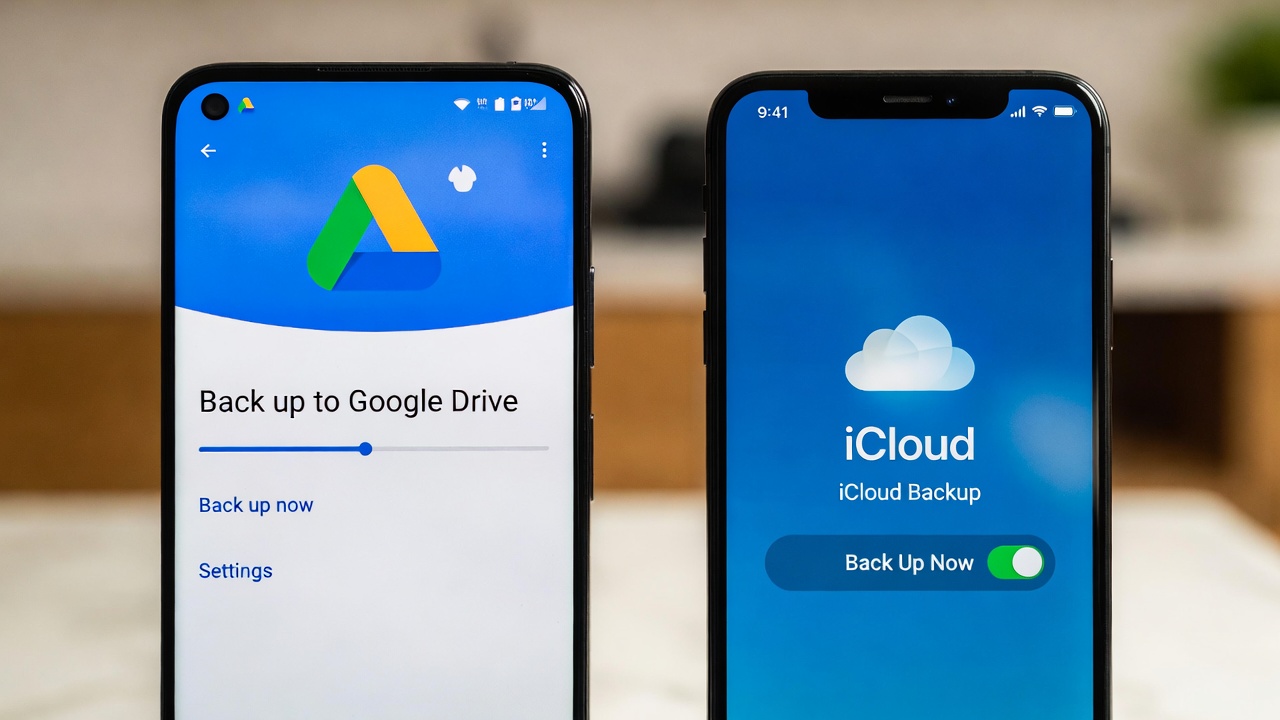
Cloud backups are the most reliable way to transfer data because they act as a safety net. On your old Android phone, go to Settings > Google > Backup and ensure “Backup by Google One” is toggled on. This saves app data, call history, contacts, and settings. Photos should be backed up separately via Google Photos. On an old iPhone, navigate to Settings > [Your Name] > iCloud > iCloud Backup and tap “Back Up Now.”
When you set up your new phone, sign in with the same account and select “Restore from Backup.” The phone will download your apps and data overnight, but you can use it immediately for calls and texts. The downside? It consumes cloud storage if you exceed the free tier (5GB for iCloud, 15GB for Google).
Method 2: Direct Cable Transfer (Fastest)
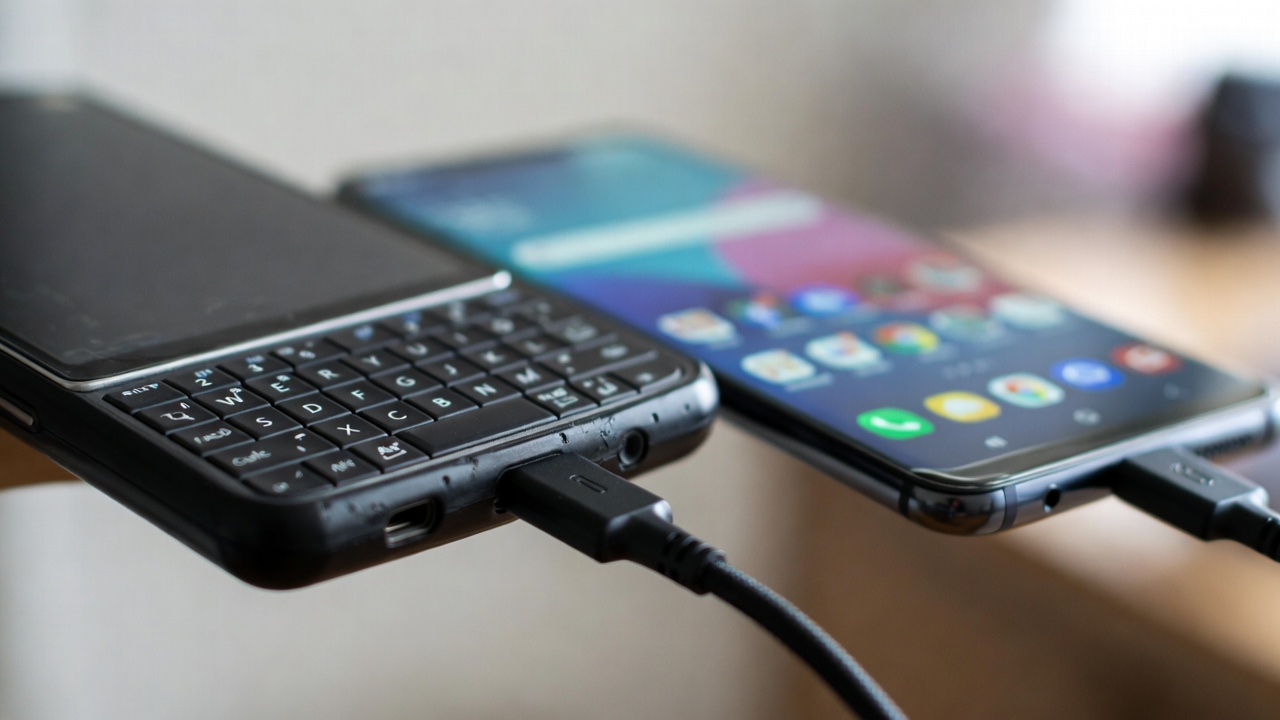
If you have a USB-C to Lightning cable (for iPhone-to-iPhone) or USB-C to USB-C (for Android-to-Android), this is the speed demon method. Both Google and Apple offer direct migration tools during initial setup. For iPhones, the “Quick Start” feature uses the cable or a wireless connection to transfer data directly from your old device. You’ll see an animation on the new phone; scan it with the old one and follow the prompts.
For Android, brands like Samsung have “Smart Switch,” and Google’s setup includes a cable option. Connect the phones with a compatible cable, and a prompt will appear to start the transfer. ❤️ Bookmark this post to try these ideas later if you’re not switching phones today. This method transfers everything—including Wi-Fi passwords and wallpapers—in about 30 minutes for 50GB of data.
Method 3: Manual Transfer (Photos, Files, Music)
Sometimes you don’t want to restore an entire system backup—maybe you’re selling your old phone and want a fresh start. For photos and videos, cloud services like Google Photos or iCloud Photos are best, but you can also use a computer. Connect your old phone to a PC or Mac, drag the “DCIM” folder to your desktop, then connect the new phone and drop the folder in.
For documents and downloads, apps like file manager apps or cloud storage (Dropbox, OneDrive) work well. This method gives you control over exactly what moves over, and it’s perfect if you only have a few gigabytes of important data. Just remember that app data (like game progress or WhatsApp chats) won’t transfer this way unless you use the app’s built-in chat backup feature.
What About WhatsApp and Telegram Chats?
Messaging apps are the trickiest part of learning how to transfer data to new phone because they often have encrypted backups. On WhatsApp, open Settings > Chats > Chat Backup and back up to Google Drive (Android) or iCloud (iPhone). When you reinstall WhatsApp on the new phone and verify your number, you’ll be prompted to restore. For Telegram, most of your data is cloud-based anyway, so just log in.
If you’re moving from Android to iPhone, WhatsApp now offers a paid tool for migration, but it’s not always smooth. A cleaner method is to use the “Move to iOS” app, which handles WhatsApp data during the initial transfer. Expect some limitations—animated stickers or older media might not come over perfectly. WhatsApp’s official migration guide has platform-specific details.
Troubleshooting Common Transfer Issues
Transfers can stall for a few reasons. If your phones get hot, pause the transfer and let them cool down. If the process is stuck at “preparing,” it’s usually because of a massive photo library—skip photos temporarily and move them via computer later. Incomplete transfers often happen when the old phone’s software is outdated. Update both devices to the latest OS version before attempting again.
Another common hiccup: two-factor authentication (2FA). If you use an authenticator app like Google Authenticator, you must disable 2FA on accounts before wiping the old phone, or export the accounts manually. Losing access to an authenticator app without backup codes is a nightmare—I’ve been there. 💡 Save this guide for later and share it with friends who are switching phones.
Don’t Forget: Secure Your Old Phone
Once you’ve verified that everything is on your new device—contacts, photos, messages, and two-factor apps—it’s time to wipe the old one. On Android, go to Settings > System > Reset Options > Erase All Data. On iPhone, go to Settings > General > Transfer or Reset iPhone > Erase All Content and Settings. This ensures your data doesn’t fall into the wrong hands if you sell or trade in the device. Check out our guide on smartphone accessories to protect your new investment with cases and screen protectors.
If you’re moving between ecosystems—say, Android to iPhone—some things like paid apps won’t transfer. You’ll have to repurchase them. Also, smart home accessories paired via Bluetooth may need to be reset and reconnected to the new phone. For more on that, see our home automation setup guides.
Final Verdict: What’s the Best Method?
For most people, the cloud backup method (iCloud or Google Drive) offers the best balance of convenience and safety. It requires no cables and lets you set up the new phone while the data trickles in. However, if you have over 100GB of data or spotty Wi-Fi, a direct cable transfer is your best bet—it’s faster and doesn’t count against your data cap.
Whichever method you choose, take your time during the initial setup. Rushing leads to missed steps and forgotten passwords. How to transfer data to new phone doesn’t have to be stressful; with the preparation above, you’ll be up and running in under an hour. If you’re looking for a new device to transfer to, explore the latest arrivals at Sanso Uka Tech.
Last updated: March 2026
- Best Cheap Smartwatch Under $50
 Best Cheap Smartwatch Under $50: 5 Reliable Picks for 2026 By Sanso Uka If you’re hunting for the best… Read more: Best Cheap Smartwatch Under $50
 - Best Dash Cams of 2026
 Best Dash Cams of 2026: Top Picks for Every Driver and Budget By Wanderson Nogueira Martins Choosing the best… Read more: Best Dash Cams of 2026
 - How to Transfer Data to New Phone
 How to Transfer Data to a New Phone: A Step-by-Step Guide for 2026 By Sanso Uka Upgrading to a… Read more: How to Transfer Data to New Phone
 - Senior-Friendly Smartphones 2026
 Senior-Friendly Smartphones 2026: Best Overall Picks for Every Budget By Sanso Uka Senior-friendly smartphones in 2026 have come a… Read more: Senior-Friendly Smartphones 2026
 - Best Mechanical Keyboards in 2026
 Best Mechanical Keyboards in 2026 Best Mechanical Keyboards in 2026: Top Picks for Every Budget and Use Case By… Read more: Best Mechanical Keyboards in 2026
 - Best Monitor for Home Office 2026
 Best Monitor for Home Office 2026: Expert Picks & Buying Guide By Sanso Uka Your monitor is the window… Read more: Best Monitor for Home Office 2026
 - How to Extend Smartphone Battery Life
 How to Extend Smartphone Battery Life: 12 Practical Tips That Actually Work By Sanso Uka You unplugged your phone… Read more: How to Extend Smartphone Battery Life
 - Best E-Readers in 2026
 Best E-Readers in 2026: Which One Is Actually Worth Buying? Best E-Readers in 2026: Which One Is Actually Worth… Read more: Best E-Readers in 2026
 - Refurbished vs New Laptop
 Refurbished vs New Laptop: Which Should You Buy in 2026? By Sanso Uka When you’re in the market for… Read more: Refurbished vs New Laptop
 - Best Gaming Headsets Under $100
 Best Gaming Headsets Under $100 in 2026: Top Picks for Every Platform By Sanso Uka Finding the best gaming… Read more: Best Gaming Headsets Under $100
 - How Long Do Laptops Last
 How Long Do Laptops Really Last? A Practical Guide to Lifespan By Sanso Uka If you are shopping for… Read more: How Long Do Laptops Last
 - Best Portable Charger 2026
 Best Portable Charger in 2026: Top Power Banks for Every Budget and Use Case By Wanderson Nogueira Martins Finding… Read more: Best Portable Charger 2026