
How to Extend Smartphone Battery Life: 12 Practical Tips That Actually Work
By Sanso Uka
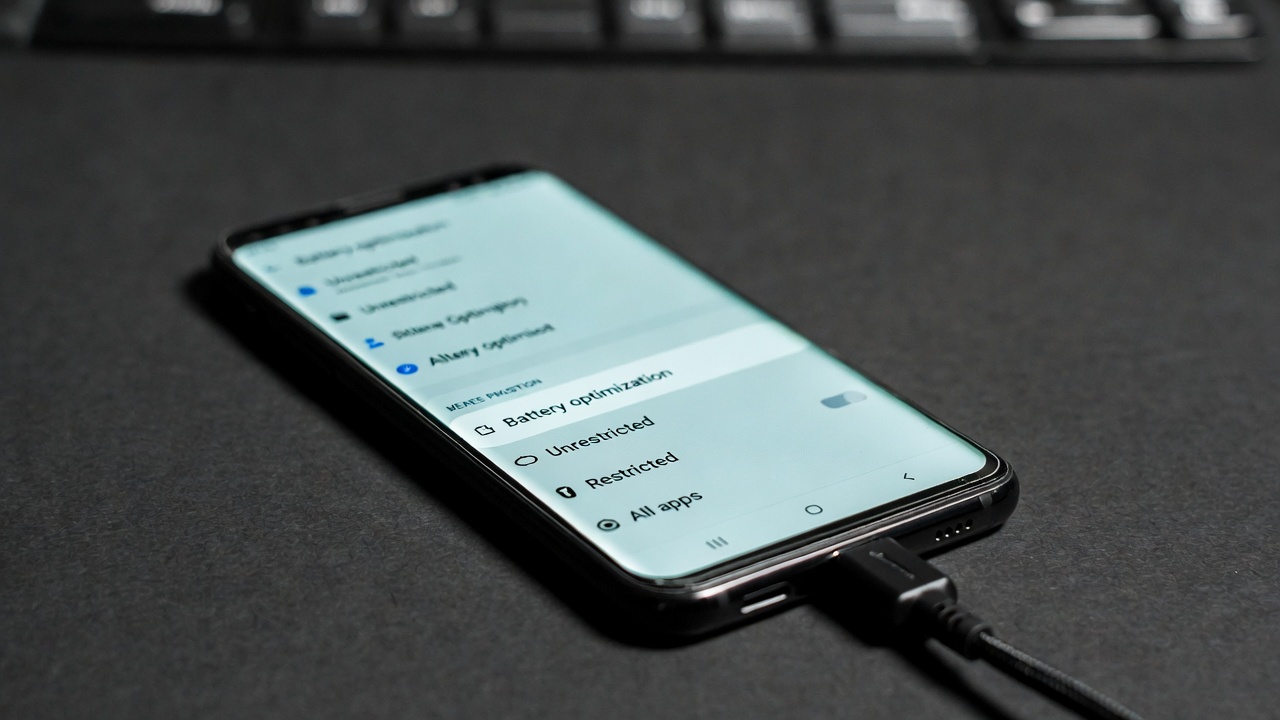
You unplugged your phone at 8 AM, and by 2 PM you’re hunting for a charger. It’s a scenario almost every smartphone user knows too well. Battery degradation is inevitable, but how you use and charge your phone daily makes the difference between a battery that lasts a full day for two years and one that dies by noon after 18 months. If you want to know how to extend smartphone battery life without keeping it tethered to a wall outlet, these 12 practical tips will help you get more screen time and long-term battery health. 📌 Don’t forget to save this post for the next time your percentage starts dropping too fast.
1. Stop Charging to 100% (Yes, Really)
Modern lithium-ion batteries don’t like being completely full or completely empty. Charging to 100% puts the battery under “high voltage stress,” which speeds up chemical aging. Most manufacturers (including Apple and Samsung) now include an “optimized charging” feature that learns your routine and holds the battery at 80% until you need it. For even better long-term health, keep your charge between 20% and 80% for daily use. It feels counterintuitive, but your battery will thank you after 18 months.
2. Turn Off 5G When You Don’t Need Gigabit Speeds
5G is fast, but it’s also a battery hog—especially when you’re in an area with a weak signal. Your phone cranks up the power to maintain that connection. Switching to LTE (4G) can buy you an extra hour or two of screen time. On an iPhone, go to Settings > Cellular > Cellular Data Options > Voice & Data and pick “LTE.” On Android, it’s usually Settings > Connections > Mobile Networks > Network Mode and select “LTE/3G/2G” (auto). Save 5G for downloading large files or when you’re stationary with good coverage.
3. Screen Brightness: Auto Is Good, Manual Is Better
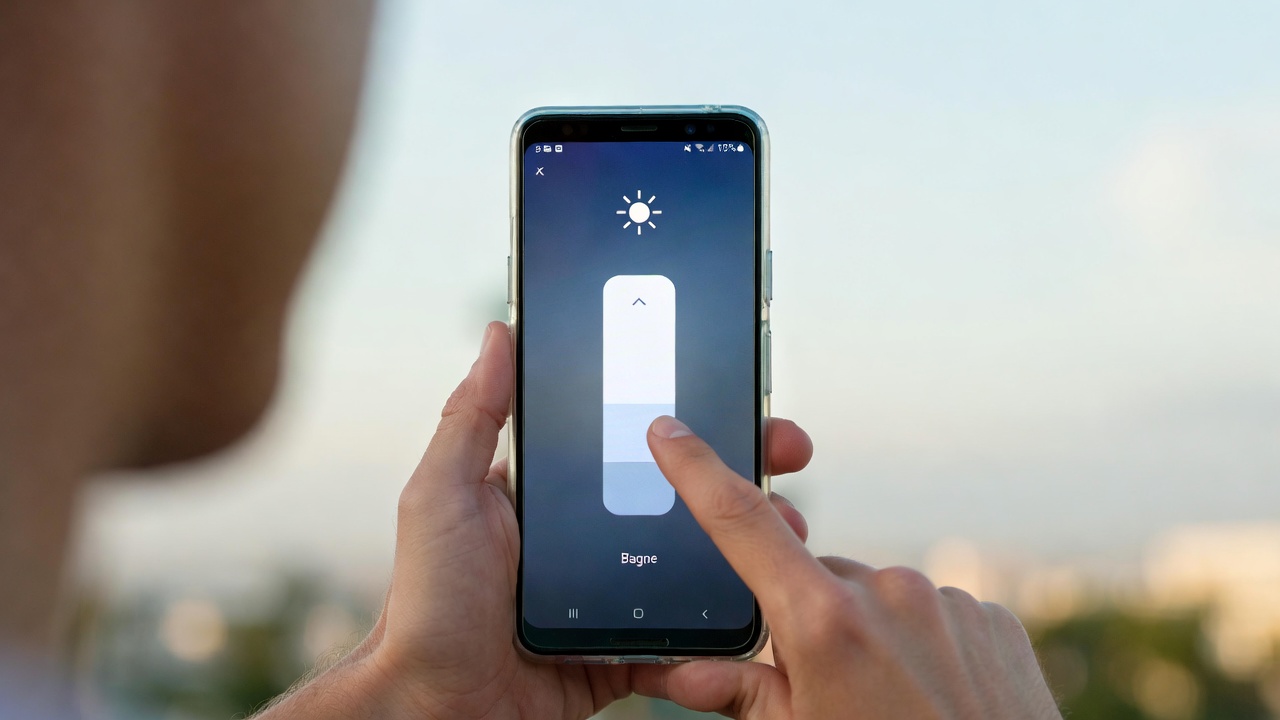
The display is the number one battery consumer. Auto-brightness helps, but it often keeps the screen brighter than necessary because ambient light sensors can be fooled by temporary glare. Pull down your control center and manually set brightness to the lowest level you can comfortably read. If you’re outdoors, that might be 80%; indoors, 30–40% is usually plenty. Also, enable “Dark Mode” if your phone has an OLED screen—black pixels are literally turned off, saving noticeable power.
4. Kill Background App Refresh (But Not All of It)
Apps love to update in the background so they’re ready when you open them. That’s convenient, but it drains battery. Go through your app list and disable background refresh for apps that don’t need real-time updates—do you really need a shopping list app refreshing itself at 3 AM? On iOS: Settings > General > Background App Refresh. On Android: Settings > Apps > [Select App] > Mobile data & Wi-Fi > Disable “Background data.” Keep it on for messaging apps and email; turn it off for everything else.
For more detailed walkthroughs on managing app settings, check out our guides on Android tips and tricks and iOS features and updates.
5. Location Services: Set to “While Using”
Apps asking for “Always” location access is one of the sneakiest battery drains. GPS is power-intensive. Go into your privacy settings and change every app from “Always” to “While Using the App.” Exceptions might be navigation apps like Google Maps or Waze, but even then, you only need them when you’re driving. For weather apps, “While Using” is sufficient—they’ll update when you open them.
6. Push Email vs. Fetch: Choose Fetch
Push email sounds great—messages arrive instantly. But it keeps a constant connection to the server. Switching to “Fetch” (where your phone checks for email at set intervals, like every 30 or 60 minutes) can extend battery life noticeably. If you don’t need work emails the second they arrive, set it to manual—then you only check when you open the mail app. This is especially effective if you have multiple email accounts.
7. Use Low Power Mode (Don’t Wait for the 20% Warning)
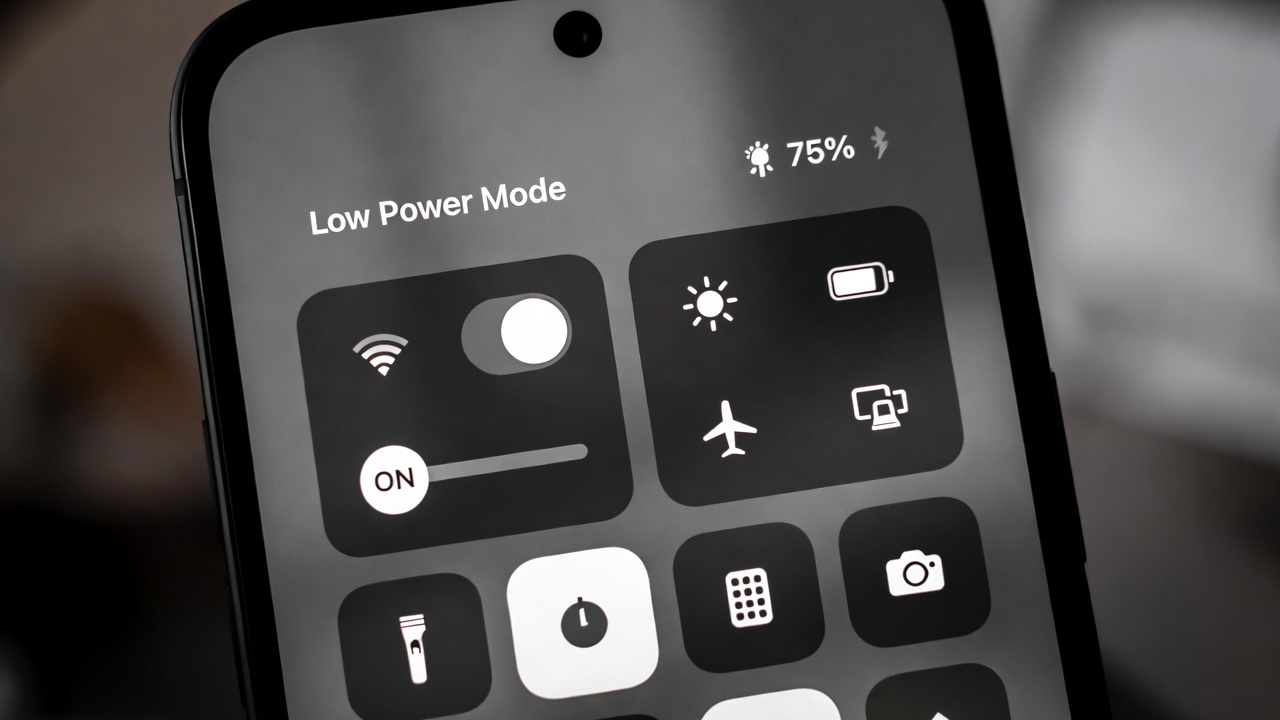
Both iOS and Android have battery saver modes that automatically reduce performance, disable background tasks, and lower visual effects. You don’t have to wait for the 20% alert to turn them on. If you know you have a long day ahead, enable Low Power Mode (iPhone) or Battery Saver (Android) right after unplugging. You’ll lose a little smoothness, but you’ll gain hours of runtime. It’s the single most effective toggle for immediate battery extension.
8. Uninstall Apps You Never Use (Especially Bloatware)
Every app installed on your phone has services that can run in the background, even if you never open them. Carriers and manufacturers often pre-install apps (bloatware) that phone home regularly. Go through your app drawer and delete anything you haven’t used in the last month. For apps that can’t be uninstalled (like some Samsung or Xiaomi system apps), you can often “Disable” them in settings, which stops them from running entirely.
9. Watch Out for Widgets and Live Wallpapers
Widgets are handy, but weather widgets, news tickers, and live wallpapers constantly refresh to show updated information. Each refresh wakes the phone’s processor and, in some cases, uses location or data. Stick to static wallpapers and limit your home screen to 2–3 essential widgets. If you use a stock ticker or crypto widget, be aware it’s updating every few minutes.
10. Avoid Extreme Temperatures
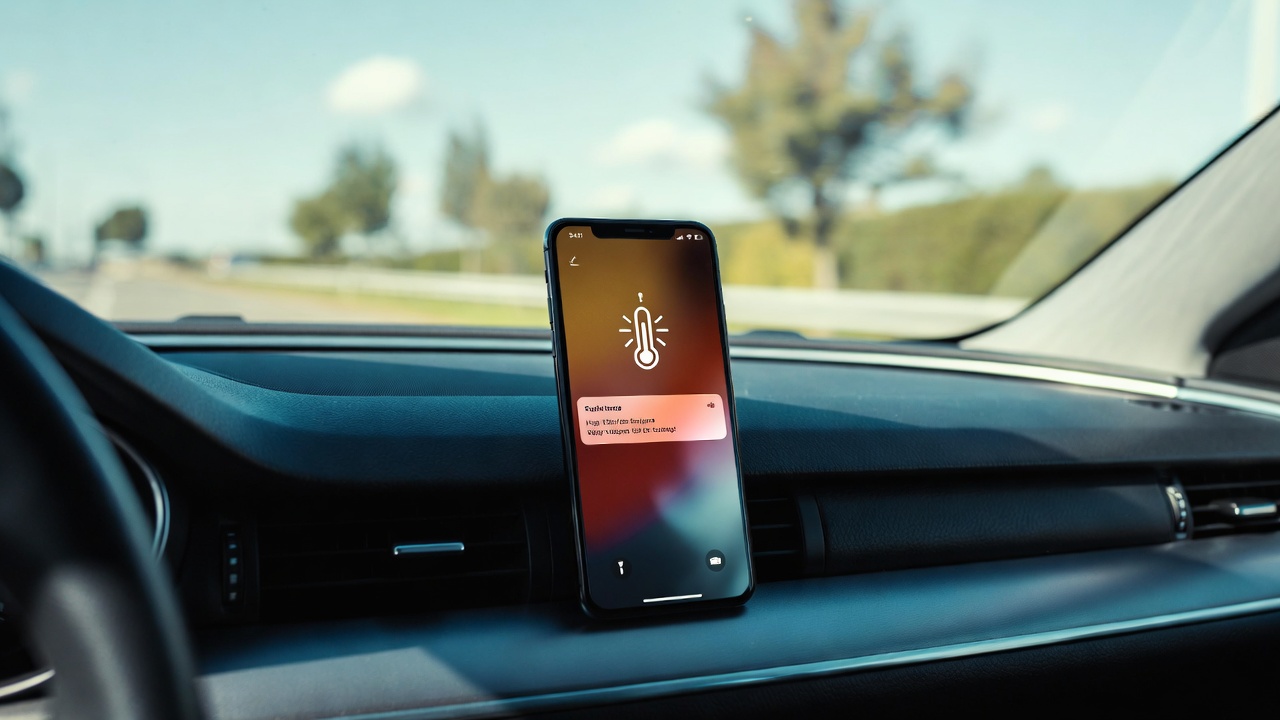
This is a physical limitation of lithium-ion batteries. Heat is the enemy. Leaving your phone on the car dashboard in summer (temperatures above 35°C / 95°F) can permanently degrade battery capacity. Cold temps temporarily reduce performance, but heat causes permanent damage. If your phone feels hot to the touch while charging, take it out of the case and unplug it until it cools down. According to Apple’s battery information page, high-temperature environments can damage battery capacity more than heavy usage.
11. Use the Right Charger (Speed Isn’t Everything)
Fast charging is convenient, but it generates more heat. For overnight charging, use a standard 5W or 10W charger instead of the 25W+ fast charger. The slower charge creates less heat and puts less stress on the battery. Also, avoid cheap, uncertified cables and chargers—they can deliver inconsistent power that degrades battery chemistry faster. If you need a new charger, check out our recommendations in the smartphones and accessories section.
12. Check Which Apps Are Actually Draining Power
Both Android and iOS have built-in battery usage monitors. Go to Settings > Battery and look at the breakdown. If you see an app using 20–30% of your battery but you only used it for 10 minutes, something is wrong. That app might have a bug or be misconfigured. Force stop it, clear its cache (Android), or reinstall it. Sometimes a single misbehaving app is responsible for 50% of your daily drain.
The Physical Reality: Batteries Wear Out
No software tip can stop the chemical aging of a lithium-ion battery. After 300–500 charge cycles, most batteries drop to about 80% of their original capacity. If your phone is more than two years old and you’ve tried all the tips but still can’t make it through the day, the honest answer is that you probably need a battery replacement. Check your battery health in settings (iPhone: Battery Health > Maximum Capacity; Android: dialing *#*#4636#*#* or using an app like AccuBattery). If it’s below 80%, a new battery is the most cost-effective “upgrade” you can make.
And if you’re in the market for a new device and battery life is your top priority, we have guides on laptops and tablets that balance portability with endurance.
Conclusion: Small Changes, Real Results
Extending your smartphone battery life isn’t about one magic setting—it’s about a handful of small adjustments that add up. Start with screen brightness and background app refresh today, and you’ll notice the difference by tomorrow afternoon. For the long game, keep your charge between 20% and 80%, avoid heat, and use slow charging overnight.
❤️ Bookmark this post so you can come back to these tips whenever your battery starts feeling weak. If you try one thing right now, manually lower your screen brightness and see how much longer your phone lasts today.
- Best Cheap Smartwatch Under $50
 Best Cheap Smartwatch Under $50: 5 Reliable Picks for 2026 By Sanso Uka If you’re hunting for the… Read more: Best Cheap Smartwatch Under $50
 - Best Dash Cams of 2026
 Best Dash Cams of 2026: Top Picks for Every Driver and Budget By Wanderson Nogueira Martins Choosing the… Read more: Best Dash Cams of 2026
 - How to Transfer Data to New Phone
 How to Transfer Data to a New Phone: A Step-by-Step Guide for 2026 By Sanso Uka Upgrading to… Read more: How to Transfer Data to New Phone
 - Senior-Friendly Smartphones 2026
 Senior-Friendly Smartphones 2026: Best Overall Picks for Every Budget By Sanso Uka Senior-friendly smartphones in 2026 have come… Read more: Senior-Friendly Smartphones 2026
 - Best Mechanical Keyboards in 2026
 Best Mechanical Keyboards in 2026 Best Mechanical Keyboards in 2026: Top Picks for Every Budget and Use Case… Read more: Best Mechanical Keyboards in 2026
 - Best Monitor for Home Office 2026
 Best Monitor for Home Office 2026: Expert Picks & Buying Guide By Sanso Uka Your monitor is the… Read more: Best Monitor for Home Office 2026
 - How to Extend Smartphone Battery Life
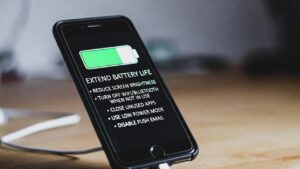 How to Extend Smartphone Battery Life: 12 Practical Tips That Actually Work By Sanso Uka You unplugged your… Read more: How to Extend Smartphone Battery Life
 - Best E-Readers in 2026
 Best E-Readers in 2026: Which One Is Actually Worth Buying? Best E-Readers in 2026: Which One Is Actually… Read more: Best E-Readers in 2026
 - Refurbished vs New Laptop
 Refurbished vs New Laptop: Which Should You Buy in 2026? By Sanso Uka When you’re in the market… Read more: Refurbished vs New Laptop
 - Best Gaming Headsets Under $100
 Best Gaming Headsets Under $100 in 2026: Top Picks for Every Platform By Sanso Uka Finding the best… Read more: Best Gaming Headsets Under $100
 - How Long Do Laptops Last
 How Long Do Laptops Really Last? A Practical Guide to Lifespan By Sanso Uka If you are shopping… Read more: How Long Do Laptops Last
 - Best Portable Charger 2026
 Best Portable Charger in 2026: Top Power Banks for Every Budget and Use Case By Wanderson Nogueira Martins… Read more: Best Portable Charger 2026