
How to Choose a Laptop for College in 2026: A Practical Guide for Students
By Sanso Uka
Walking into a campus bookstore or scrolling through endless online deals can be overwhelming, especially when you’re staring at price tags that rival a semester’s worth of textbooks. Knowing how to choose a laptop for college is about more than just picking the shiniest model; it’s about matching the machine to your major, your budget, and your daily routine. A laptop is arguably the most important tool you’ll buy for the next four years, so getting it right means fewer headaches and more productivity.

Step 1: Let Your Major Choose the Specs
The most common mistake freshmen make is buying a laptop based on looks or price alone, only to find out in sophomore year that it can’t run the required software. Your course of study dictates the hardware you need. Don’t guess—check your department’s website or email a professor for recommended specifications.
Liberal Arts, Business, and General Studies
If your workload consists of writing essays, browsing research databases, spreadsheets, and presentations, you don’t need a powerhouse. Look for:
- Processor: Intel Core i5 or AMD Ryzen 5 (latest generation)
- RAM: 8GB minimum, but 16GB is strongly recommended for future-proofing
- Storage: 256GB to 512GB SSD (solid-state drive) for quick boot times
- Battery life: Aim for 8+ hours so you can go all day without hunting for an outlet
Engineering, Architecture, and Data Science
CAD software, MATLAB, rendering programs, and virtual machines require serious horsepower. This is where you invest in performance over portability.
- Processor: Intel Core i7/i9 or AMD Ryzen 7/9
- RAM: 16GB absolute minimum; 32GB is safer for complex projects
- Graphics: Dedicated GPU required—NVIDIA GeForce RTX 3050 or better
- Storage: 512GB to 1TB SSD; you’ll be saving large files
- Display: 15 inches or larger for comfortable viewing of detailed designs
Creative Arts (Graphic Design, Video Editing, Music Production)
Color accuracy and processing power are non-negotiable. A standard laptop won’t cut it for rendering 4K video or running large sample libraries.
- Processor: Intel Core i7/i9 or Apple M3/M4 chips
- RAM: 16GB minimum; 32GB recommended for video work
- Graphics: Dedicated GPU or high-performance integrated (Apple Silicon excels here)
- Display: High-resolution with 100% sRGB or DCI-P3 color coverage
- Ports: SD card slot is a huge plus for photographers

Step 2: Portability vs. Performance—The Trade-Off
A 17-inch gaming laptop with a beefy graphics card might sound appealing, but carrying it across campus with a dead battery after two hours is a recipe for regret. You have to be honest about your daily physical load. A lightweight ultrabook around 2.5 to 3.5 pounds is much kinder on your back than a 6-pound workstation. If your major demands power, consider if you truly need to carry that machine to every class, or if you can use campus computer labs for intensive tasks and keep a lighter laptop for notes and writing.
Step 3: Operating System—Ecosystem Matters
This decision often comes down to personal preference, but compatibility with your other devices is a practical consideration.
- macOS (Apple): Excellent battery life, great for creative software, and seamless integration if you already own an iPhone or iPad. However, some specialized engineering software may not run natively or require Windows emulation.
- Windows: Broadest software compatibility, especially for engineering and business applications. Vast range of price points and hardware configurations. If you’re into PC gaming, this is your platform.
- ChromeOS: Affordable, secure, and simple. Works well if all your work is done in a browser (Google Docs, cloud-based apps). Check if your required software has web versions before committing.
For most students, Windows offers the most flexibility, while MacBooks excel in creative fields and longevity. If you’re building a desktop for your dorm, check out our PC builds and components section for ideas.
Step 4: Build Quality and Ports—The Physical Reality
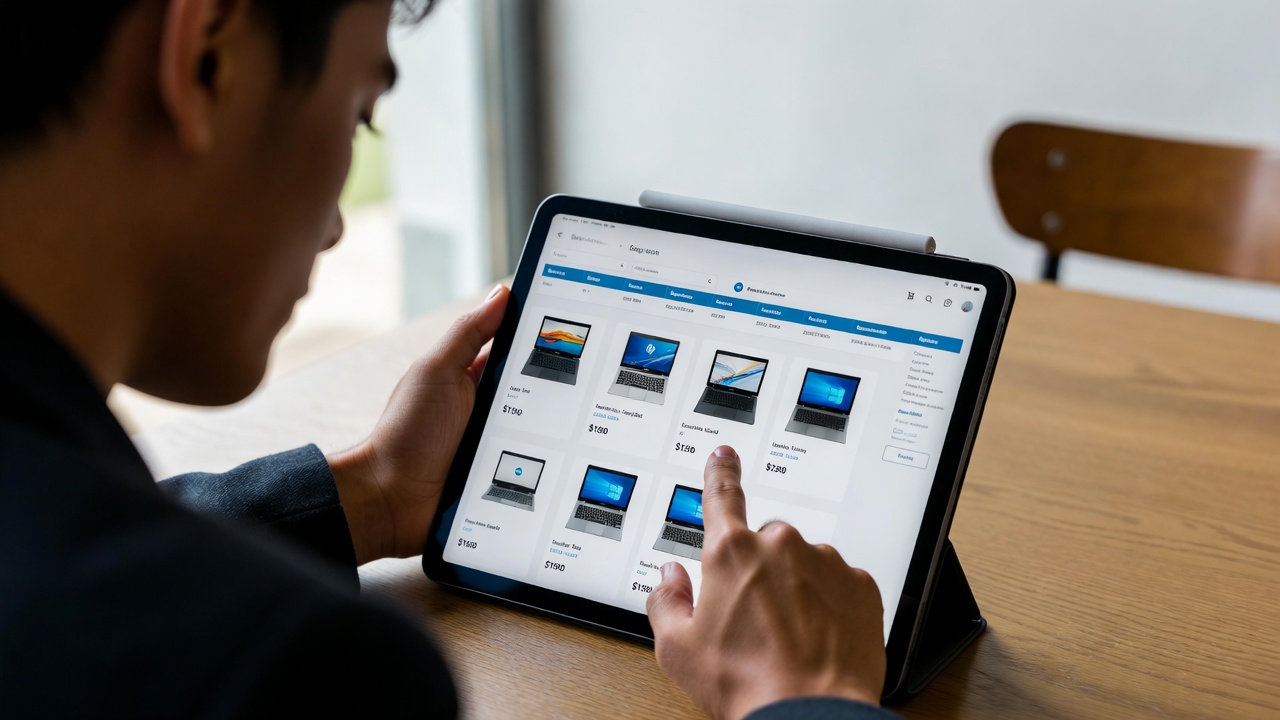
A college laptop gets tossed into bags, dropped on desks, and hauled around in all kinds of weather. Look for solid build quality—aluminum unibody construction or well-reviewed plastic chassis that won’t flex. Check the port selection carefully. Many modern laptops are ditching USB-A ports and HDMI in favor of USB-C. Dongles are easy to lose, so having built-in ports saves frustration. At minimum, look for:
- At least one USB-A port for older flash drives
- HDMI or DisplayPort for connecting to projectors
- Headphone jack (still useful for wired earbuds during exams)
- SD card slot if you’re in photography or video
Step 5: Budget—Finding the Sweet Spot
You don’t need to spend $2,000 to get a capable college laptop. The $600–$900 range offers excellent value, with solid performance and build quality for most students. If you need a dedicated GPU or a MacBook, expect to spend $1,200 or more. Consider student discounts—Apple, Dell, and HP offer them, and they can save you 10% or more. Also, factor in the cost of essential software; many are available free or discounted through your university. You can find great deals on essential programs in our essential software section.
A note on value: spending a bit more upfront for 16GB of RAM (instead of 8GB) often extends a laptop’s usable life by two years. It’s one of the smartest upgrades you can make.
Step 6: Don’t Forget the Extras
A good laptop is only part of the equation. A quality backpack with a padded laptop sleeve protects your investment. An external mouse can save your hand during long study sessions. And a portable power bank that supports laptop charging is a lifesaver when library outlets are scarce. If you’re accessorizing, check out our smartphones and accessories for chargers and cables that work across your devices.
Final Thoughts: Match, Don’t Overspend
The best college laptop isn’t the most expensive one—it’s the one that runs your required software, survives a full day of classes, and doesn’t break your back or your bank account. Start with your major’s requirements, then narrow down by battery life, portability, and budget. Be honest about what you actually need versus what looks cool. A well-chosen laptop should last you through graduation without slowing down. If you’re unsure between two models, lean toward better battery life and more RAM—those are the upgrades you’ll appreciate every single day.
Still weighing your options? Head over to the laptops and tablets section at Sanso Uka Tech for curated recommendations and detailed reviews. Your perfect study partner is out there—choose wisely, and happy studying.
- Best Cheap Smartwatch Under $50
 Best Cheap Smartwatch Under $50: 5 Reliable Picks for 2026 By Sanso Uka If you’re hunting for the best… Read more: Best Cheap Smartwatch Under $50
 - Best Dash Cams of 2026
 Best Dash Cams of 2026: Top Picks for Every Driver and Budget By Wanderson Nogueira Martins Choosing the best… Read more: Best Dash Cams of 2026
 - How to Transfer Data to New Phone
 How to Transfer Data to a New Phone: A Step-by-Step Guide for 2026 By Sanso Uka Upgrading to a… Read more: How to Transfer Data to New Phone
 - Senior-Friendly Smartphones 2026
 Senior-Friendly Smartphones 2026: Best Overall Picks for Every Budget By Sanso Uka Senior-friendly smartphones in 2026 have come a… Read more: Senior-Friendly Smartphones 2026
 - Best Mechanical Keyboards in 2026
 Best Mechanical Keyboards in 2026 Best Mechanical Keyboards in 2026: Top Picks for Every Budget and Use Case By… Read more: Best Mechanical Keyboards in 2026
 - Best Monitor for Home Office 2026
 Best Monitor for Home Office 2026: Expert Picks & Buying Guide By Sanso Uka Your monitor is the window… Read more: Best Monitor for Home Office 2026
 - How to Extend Smartphone Battery Life
 How to Extend Smartphone Battery Life: 12 Practical Tips That Actually Work By Sanso Uka You unplugged your phone… Read more: How to Extend Smartphone Battery Life
 - Best E-Readers in 2026
 Best E-Readers in 2026: Which One Is Actually Worth Buying? Best E-Readers in 2026: Which One Is Actually Worth… Read more: Best E-Readers in 2026
 - Refurbished vs New Laptop
 Refurbished vs New Laptop: Which Should You Buy in 2026? By Sanso Uka When you’re in the market for… Read more: Refurbished vs New Laptop
 - Best Gaming Headsets Under $100
 Best Gaming Headsets Under $100 in 2026: Top Picks for Every Platform By Sanso Uka Finding the best gaming… Read more: Best Gaming Headsets Under $100
 - How Long Do Laptops Last
 How Long Do Laptops Really Last? A Practical Guide to Lifespan By Sanso Uka If you are shopping for… Read more: How Long Do Laptops Last
 - Best Portable Charger 2026
 Best Portable Charger in 2026: Top Power Banks for Every Budget and Use Case By Wanderson Nogueira Martins Finding… Read more: Best Portable Charger 2026