
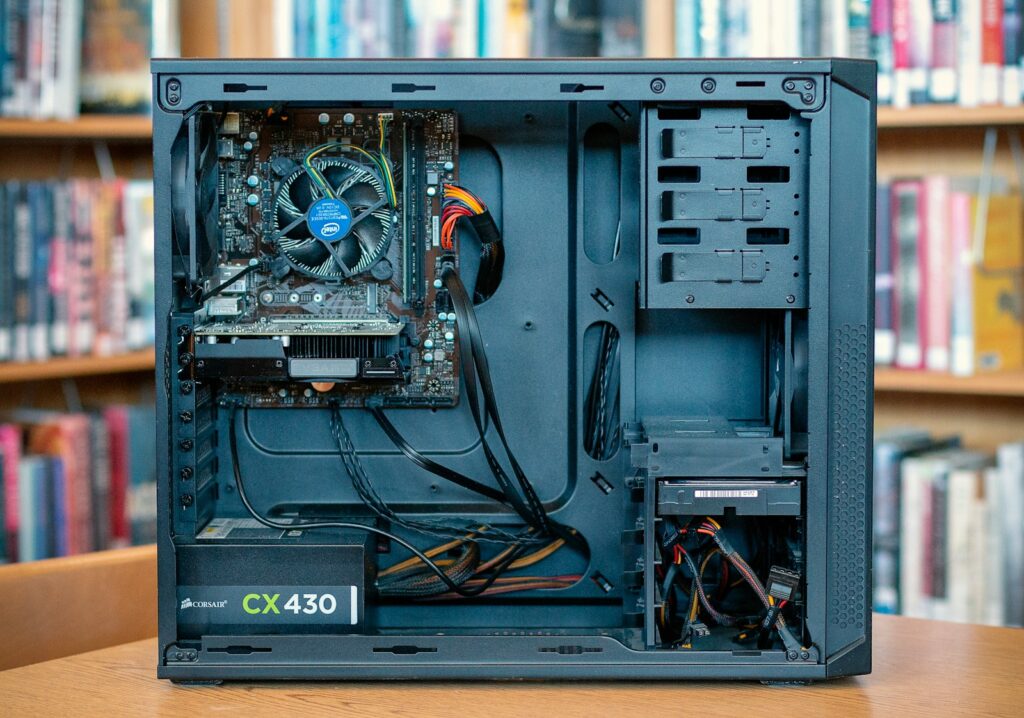
Complete Guide to PC Builds & Components for 2026
Building your own PC from individual components offers unmatched customization and value compared to pre-built systems. Understanding PC builds & components empowers you to create a computer perfectly tailored to your needs, whether that’s gaming, content creation, or general productivity. I built my first PC years ago with trembling hands, worried I’d break something expensive, but the process turned out far simpler than I expected.
The component landscape in 2026 presents incredible options at every price point, from budget builds that handle daily tasks effortlessly to high-end systems that power demanding professional workloads. Knowing which components matter most for your specific use case prevents overspending on unnecessary features while ensuring you get the performance you actually need.
In this comprehensive guide, we’ll explore everything about selecting and assembling PC builds & components, from understanding what each part does to avoiding common mistakes that frustrate first-time builders. Whether you’re planning a budget-friendly office machine or a powerful gaming rig, you’ll find practical advice that demystifies the building process and helps you make confident choices.

Understanding Core Components and Their Functions
Every PC consists of essential components that work together to create a functional system. Understanding what each part does helps you make informed decisions when selecting PC builds & components for your custom machine.
The processor (CPU) serves as your computer’s brain, executing instructions and managing system operations. Modern CPUs feature multiple cores that handle simultaneous tasks, with gaming typically requiring 6-8 cores while professional workloads like video editing benefit from 12-16 cores. Intel and AMD dominate the market, offering competitive performance at similar price points.
The motherboard connects all components and determines compatibility between parts. It provides power delivery, data transfer pathways, and expansion slots for additional components. Choosing the right motherboard means matching the socket type to your CPU, ensuring adequate RAM slots and storage connections, and selecting a form factor that fits your case.
Graphics cards (GPUs) handle visual rendering, making them crucial for gaming and creative applications. Integrated graphics built into CPUs suffice for basic computing, but dedicated graphics cards dramatically improve performance in demanding tasks. The GPU market ranges from $200 budget cards for 1080p gaming to $1,500+ enthusiast options for 4K gaming and professional 3D work.
RAM (memory) stores data your CPU actively works with, and insufficient memory causes system slowdowns. 16GB represents the comfortable minimum for gaming and general use in 2026, while 32GB benefits content creators and power users. Memory speed matters less than capacity for most users, though high-performance builds gain marginal benefits from faster RAM.
Storage devices hold your operating system, programs, and files. SSDs have largely replaced traditional hard drives, offering dramatically faster boot times and application loading. A 500GB-1TB SSD handles most users’ needs, with larger SSDs or additional hard drives providing bulk storage for large media libraries at lower cost per gigabyte.

Choosing the Right CPU for Your Needs
The processor represents one of the most important decisions in PC builds & components, as it affects overall system performance and determines compatible motherboard options. Different use cases require different CPU characteristics.
Gaming builds benefit from CPUs with strong single-core performance and adequate core counts. Six to eight cores handle modern games excellently, with higher core counts providing diminishing returns for gaming specifically. Mid-range processors like Intel Core i5 or AMD Ryzen 5 offer outstanding gaming performance without unnecessary cost.
Content creation workloads including video editing, 3D rendering, and software compilation scale well with additional cores. Twelve to sixteen cores significantly reduce rendering times and enable smoother multitasking during creative work. Intel Core i7/i9 or AMD Ryzen 7/9 processors provide the parallel processing power these applications utilize effectively.
Budget builds for office work, web browsing, and media consumption don’t require flagship processors. Entry-level CPUs like Intel Core i3 or AMD Ryzen 3 handle everyday computing tasks smoothly while keeping costs manageable. These processors often include integrated graphics, eliminating the need for dedicated graphics cards in basic systems.
Overclocking potential matters to enthusiasts who want to push hardware beyond stock specifications for additional performance. Intel K-series and AMD unlocked processors support overclocking, but this requires compatible motherboards with robust power delivery and better cooling solutions. Most users achieve adequate performance without overclocking, making locked processors sensible choices.
Graphics Card Selection and Performance Tiers
Graphics cards represent the largest single expense in gaming-focused PC builds & components, and choosing appropriately for your monitor resolution and target frame rates prevents overspending or disappointing performance.
Budget graphics cards ($200-350) handle 1080p gaming at medium to high settings with 60+ FPS in most titles. They’re perfect for gamers on tight budgets or those playing less demanding competitive games. Options in this tier provide excellent value for casual gaming without breaking the bank.
Mid-range cards ($350-600) dominate the market for good reason—they deliver strong 1080p performance with high settings and respectable 1440p gaming. These GPUs represent the sweet spot where price and performance intersect favorably. Most gamers find this tier provides everything they need for enjoyable gaming experiences.
High-end graphics cards ($600-1,000) target 1440p high refresh rate gaming and entry-level 4K gaming. They handle demanding titles with maximum settings while maintaining smooth frame rates. Content creators benefit from the additional VRAM and compute performance these cards offer for rendering and video editing tasks.
Enthusiast-tier cards ($1,000+) provide bleeding-edge performance for 4K high refresh rate gaming, professional 3D work, and AI applications. The performance improvement over high-end cards doesn’t justify the cost for most users, but professionals and enthusiasts willing to pay premium prices for maximum capability find value here.
Consider your monitor specifications when selecting graphics cards. A 1080p 60Hz monitor doesn’t benefit from a $1,000 graphics card, while a 4K 144Hz display needs substantial GPU power. Match your graphics card to your display to avoid bottlenecks or wasted performance potential.

Memory and Storage Configuration
RAM and storage represent crucial elements of PC builds & components that directly impact system responsiveness and usability. Proper configuration ensures smooth multitasking and fast data access.
RAM capacity requirements vary by use case. 8GB suffices for basic computing but feels constrained when running multiple applications. 16GB provides comfortable headroom for gaming and general multitasking. 32GB benefits content creators, developers, and power users running virtual machines or numerous simultaneous applications. 64GB+ serves specialized professional workloads.
Memory speed and timings affect performance marginally in most applications. DDR4-3200 or DDR5-5600 represent sensible baselines that balance performance and cost. Faster memory provides small benefits in CPU-intensive tasks and specific games, but the improvements rarely justify significant price premiums for typical users.
Dual-channel memory configuration delivers better performance than single modules. Install RAM in matched pairs to enable dual-channel mode—two 8GB sticks outperform one 16GB stick despite identical total capacity. Consult your motherboard manual for proper slot population to ensure dual-channel operation.
Primary storage should use NVMe SSDs for operating systems and frequently-used applications. These drives offer dramatically faster speeds than SATA SSDs or hard drives. A 500GB-1TB NVMe SSD serves most users well, with additional SATA SSDs or hard drives providing economical bulk storage for less frequently-accessed files.
Storage hierarchy optimizes both performance and value. Install your operating system and active projects on fast NVMe storage, keep games and applications on SATA SSDs, and archive media libraries or backups on high-capacity hard drives. This approach balances speed where it matters with cost-effective bulk storage.
Power Supplies and Cooling Solutions
Power supplies and cooling often receive less attention than flashy components like CPUs and GPUs, but these elements critically affect system stability, longevity, and noise levels in PC builds & components.
Power supply wattage should exceed your system’s maximum power draw by 20-30% for efficiency and headroom. A typical gaming system with mid-range components draws 400-500 watts, making a 650-750W power supply appropriate. High-end systems with powerful graphics cards may require 850W or more. Online calculators help estimate your specific power requirements.
Efficiency ratings (80+ Bronze, Silver, Gold, Platinum, Titanium) indicate how much electricity the PSU wastes as heat. Higher efficiency ratings cost more upfront but reduce electricity bills and generate less heat. 80+ Gold represents an excellent balance of efficiency and value for most builds.
Modular power supplies use detachable cables that improve cable management and airflow by eliminating unused wires. Fully modular PSUs offer maximum flexibility, while semi-modular units keep essential cables permanently attached. The cleaner appearance and better airflow often justify the modest price premium over non-modular units.
CPU cooling comes in two primary forms: air coolers and liquid coolers. Quality air coolers cost $30-80 and provide excellent cooling performance with zero maintenance and high reliability. Liquid coolers offer better aesthetics and sometimes superior cooling at $80-200 price points, but they add complexity and potential failure points.
Case airflow significantly impacts component temperatures. Front intake fans draw cool air in, while rear and top exhaust fans expel hot air. Positive pressure (more intake than exhaust) reduces dust buildup, while negative pressure (more exhaust than intake) maximizes heat removal. Most builds benefit from balanced or slightly positive pressure configurations.

Motherboard Features and Compatibility
Motherboards tie all PC builds & components together, and selecting the right board ensures compatibility while providing necessary features and future upgrade potential.
Form factors determine motherboard and case size. ATX boards offer maximum expansion slots and features in standard mid-tower cases. Micro-ATX provides adequate features in smaller form factors, while Mini-ITX enables compact builds with limited but sufficient expansion. Choose form factors based on your space constraints and expansion needs.
Socket compatibility is non-negotiable—your motherboard must match your CPU’s socket type. Intel and AMD use different sockets, and even within brands, different CPU generations sometimes require specific sockets. Verify socket compatibility before purchasing any motherboard and CPU combination.
RAM slots and maximum capacity affect your memory configuration options. Four slots provide flexibility for dual-channel configurations and future upgrades, while two-slot boards limit total capacity. Check supported RAM speeds as well—motherboards have maximum supported frequencies that may require BIOS settings to achieve.
Storage connectivity includes M.2 slots for NVMe SSDs and SATA ports for additional drives. Modern motherboards typically include 2-3 M.2 slots and 4-6 SATA ports. Consider your current and future storage needs when evaluating these specifications.
PCIe slots and expansion determine what additional cards you can install. The primary x16 slot holds your graphics card, while additional slots accommodate WiFi cards, capture cards, or other expansion devices. Verify that your motherboard provides adequate slots for your planned configuration.
Built-in features like WiFi, Bluetooth, and premium audio chipsets add value by eliminating separate expansion cards. Budget builds often skip these features to reduce costs, while premium motherboards include comprehensive connectivity. Assess which features you actually need versus nice-to-have additions.
Case Selection and Cable Management
Computer cases do more than just house components—they affect cooling efficiency, noise levels, and building experience when assembling PC builds & components.
Case size should match your motherboard form factor and provide adequate clearance for your components. Check GPU length clearance, CPU cooler height restrictions, and power supply dimensions before purchasing. Cramped cases make building frustrating and can restrict airflow, while excessively large cases waste space.
Build quality affects durability and ease of assembly. Steel construction provides rigidity and reduces vibration noise, while aluminum offers lighter weight at higher prices. Tempered glass side panels showcase your build but cost more than acrylic or solid panels. Consider whether aesthetics justify premium case costs for your situation.
Front panel connectivity should match your needs. USB-C front panel ports provide convenient modern connectivity, while traditional USB-A ports maintain compatibility with older peripherals. Headphone jacks and power buttons seem basic but vary in quality and placement across cases.
Cable management features dramatically improve both aesthetics and airflow. Cases with rubber grommets, cable routing channels, and shrouded power supply compartments simplify building and create cleaner appearances. Good cable management isn’t just cosmetic—it improves cooling by reducing airflow obstructions.
Dust filtering protects components and reduces cleaning frequency. Front, bottom, and side intake filters capture dust before it enters your system. Magnetic filters enable easy removal for cleaning, while fixed filters require more disassembly. Adequate filtration extends component life and maintains performance.
Common Building Mistakes to Avoid
First-time builders frequently make predictable mistakes that cause frustration or limit system performance. Learning from these common errors saves time and prevents potentially expensive problems when working with PC builds & components.
Incompatible component selection represents the most frustrating mistake. Mismatched CPU sockets, inadequate power supply wattage, or RAM incompatibility prevent your system from functioning. Use PC part picker tools that automatically verify compatibility, or carefully research specifications before purchasing components.
Insufficient power supply capacity causes system instability or prevents booting entirely. Calculate your system’s power requirements accurately and choose power supplies with appropriate headroom. Cheaping out on power supplies risks damaging expensive components—this isn’t the place to cut corners aggressively.
Forgetting the motherboard I/O shield seems minor but requires significant disassembly to correct. This metal plate snaps into the case before motherboard installation and provides grounding while covering the rear port cutout. Install it early to avoid frustration later.
Over-tightening screws can crack PCBs or strip threads. Use moderate pressure when securing components—screws should be snug but not torqued down aggressively. If you’re meeting significant resistance, verify proper alignment before forcing anything.
Inadequate thermal paste application affects CPU cooling. Too little paste reduces heat transfer, while excessive amounts create mess without improving performance. A pea-sized dot in the CPU center spreads adequately when mounting the cooler. Don’t spread it manually unless using specific application methods recommended for your cooler.
Neglecting cable management creates airflow restrictions and makes future upgrades difficult. Route cables behind the motherboard tray, use included cable ties, and plan cable paths before final assembly. Spending extra time on cable management pays dividends in cooling performance and aesthetics.

Budget-Friendly Building Strategies
Building quality PC builds & components on limited budgets requires strategic component selection and smart shopping rather than simply buying the cheapest options available.
Prioritize components that affect your primary use case. Gaming builds need capable graphics cards more than flagship CPUs, while productivity systems benefit from additional RAM and storage over RGB lighting. Allocate your budget according to what actually improves your intended usage.
Previous-generation components offer excellent value when new releases arrive. Last year’s mid-range graphics card often performs similarly to current budget options at lower prices. CPUs from previous generations maintain strong performance while costing significantly less after new launches.
Sales and bundle deals significantly reduce total system costs. Monitor prices around major shopping events like Black Friday, back-to-school seasons, and new product launches when older inventory gets discounted. Manufacturer rebates and retailer bundles sometimes combine components at attractive prices.
Used components from reputable sources stretch budgets further, though research and caution are essential. Graphics cards and CPUs typically survive years of use, while power supplies and storage warrant more caution. Purchase from sellers with return policies when buying used components.
Incremental upgrades let you start with a functional system and improve it over time. Begin with sufficient but modest components, then upgrade the graphics card, add more RAM, or expand storage as budget allows. This approach spreads costs while providing an immediately usable computer.
Avoid false economy by not cheaping out on critical components. A quality power supply prevents damage to other components, while adequate cooling protects long-term performance. Sometimes spending slightly more upfront prevents expensive replacements or system failures later.
Assembly Process and First Boot
Actually assembling PC builds & components feels intimidating initially, but following a logical sequence makes the process straightforward even for first-time builders.
Prepare your workspace with adequate lighting, a clean flat surface, and necessary tools. A Phillips screwdriver handles most screws, while zip ties organize cables. Keep component boxes and manuals nearby for reference. Ground yourself periodically by touching unpainted metal to prevent static discharge.
Install the CPU first by opening the motherboard socket, aligning the CPU correctly (look for alignment markers), and gently placing it in position. The CPU should drop into place without force—if you’re pressing hard, alignment is wrong. Secure the retention mechanism and apply thermal paste before installing the cooler.
Install RAM by opening the slot retention clips, aligning the notch in the RAM stick with the slot key, and pressing firmly until the clips snap into place. Consult your motherboard manual for optimal slot population—typically slots 2 and 4 for dual-channel operation.
Mount the motherboard into the case after installing the I/O shield. Use all standoff screws to support the board evenly and prevent flexing. Route power cables and front panel connectors before securing the motherboard completely—this proves easier than working around an installed board.
Install the graphics card after the motherboard is secured. Remove the appropriate slot covers from the case, align the card with the PCIe slot, press firmly until the retention clip engages, and secure the bracket to the case. Connect required power cables from the PSU to the graphics card.
Connect all remaining cables including power supply connections to the motherboard (24-pin and 8-pin CPU power), storage devices, and case fans. Refer to your motherboard manual for proper front panel connector orientation. Double-check all connections before attempting first boot.
First boot might not succeed immediately—don’t panic. Verify that the power supply switch is on, all power cables are fully seated, and RAM is properly installed. If the system doesn’t POST (power-on self-test), systematically check connections rather than assuming component failure.
Conclusion
Building your own PC from individual components provides unmatched customization, better value than pre-built systems, and deep satisfaction from creating something with your own hands. Understanding PC builds & components transforms what initially seems complex into an achievable and rewarding project that delivers a computer perfectly suited to your specific needs.
Success in PC building comes from careful component selection based on your actual requirements, not chasing maximum specifications or following trends blindly. Research compatibility thoroughly, allocate budget according to your priorities, and don’t overlook quality in critical components like power supplies. The building process itself is more straightforward than many fear, requiring patience and attention to detail rather than special expertise.
Remember that building a PC is an iterative learning experience. Your first build might take several hours and involve some trial and error, but the knowledge gained serves you through years of upgrades and maintenance. Focus on creating a functional system that meets your needs now while providing reasonable upgrade paths for the future. The best PC build is the one that serves your purposes effectively while fitting your budget, not the one with the most impressive benchmark scores. With the right components and careful assembly, you’ll create a powerful, personalized computing experience that commercial systems simply can’t match.
🛒 Recommended Products for PC Builds & Components
Based on the PC builds & components discussed in this article, we’ve curated a selection of top-rated products that deliver exceptional performance and value. These recommendations are carefully chosen to help you implement the solutions that best fit your needs and budget.