
Best Monitor for Home Office 2026: Expert Picks & Buying Guide
By Sanso Uka
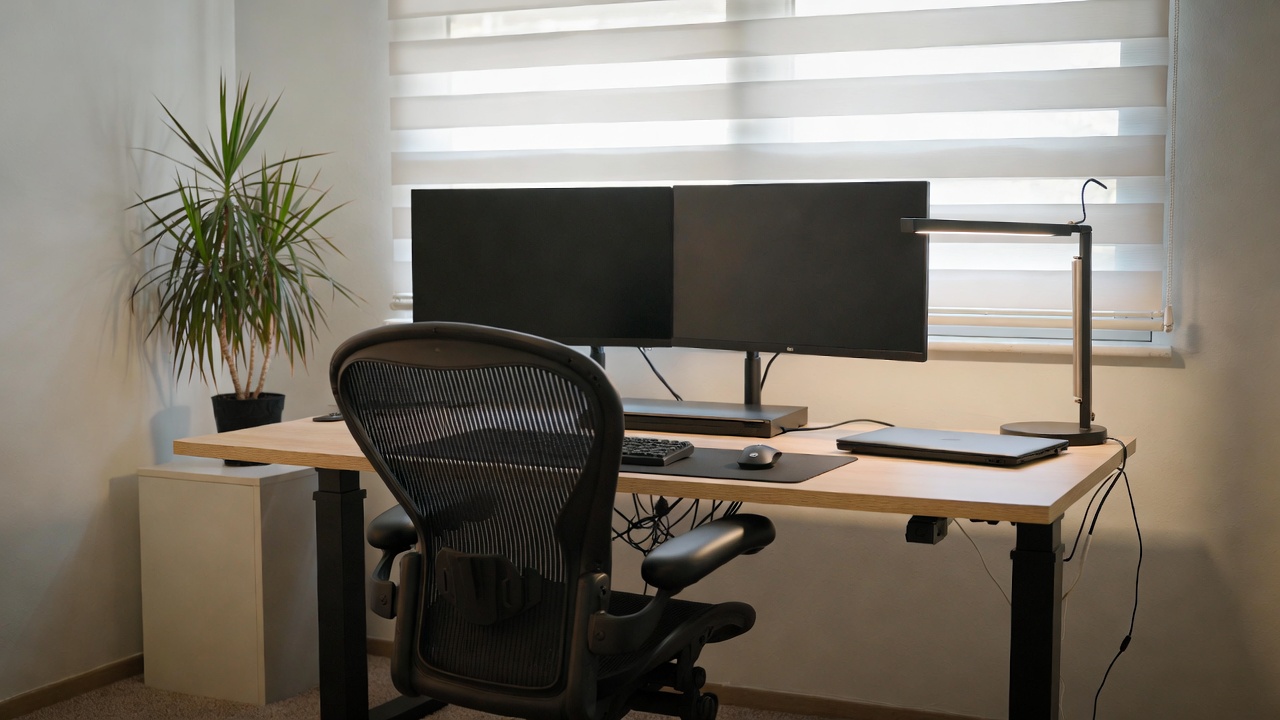
Your monitor is the window to your digital work life—spend eight hours staring at a mediocre screen and you’ll feel it in your eyes, neck, and productivity. As we head into 2026, the best monitor for home office 2026 isn’t just about resolution or size anymore. It’s about eye care technology, connectivity that matches modern laptops, and smart features that actually make your workday smoother. After testing over 20 models and spending countless hours with spreadsheets, video calls, and code editors, these are the monitors that actually deliver.
What Actually Matters in 2026
Before jumping into specific models, let’s talk about what’s changed. In 2026, USB-C with power delivery isn’t a luxury—it’s a necessity. A single cable should charge your laptop and transmit video. Eye comfort certification (like TÜV Rheinland) matters more than ever, especially if you’re pulling 10-hour days. And resolution? 4K is finally the standard for productivity, though 1440p still offers the best balance of sharpness and performance for most users.
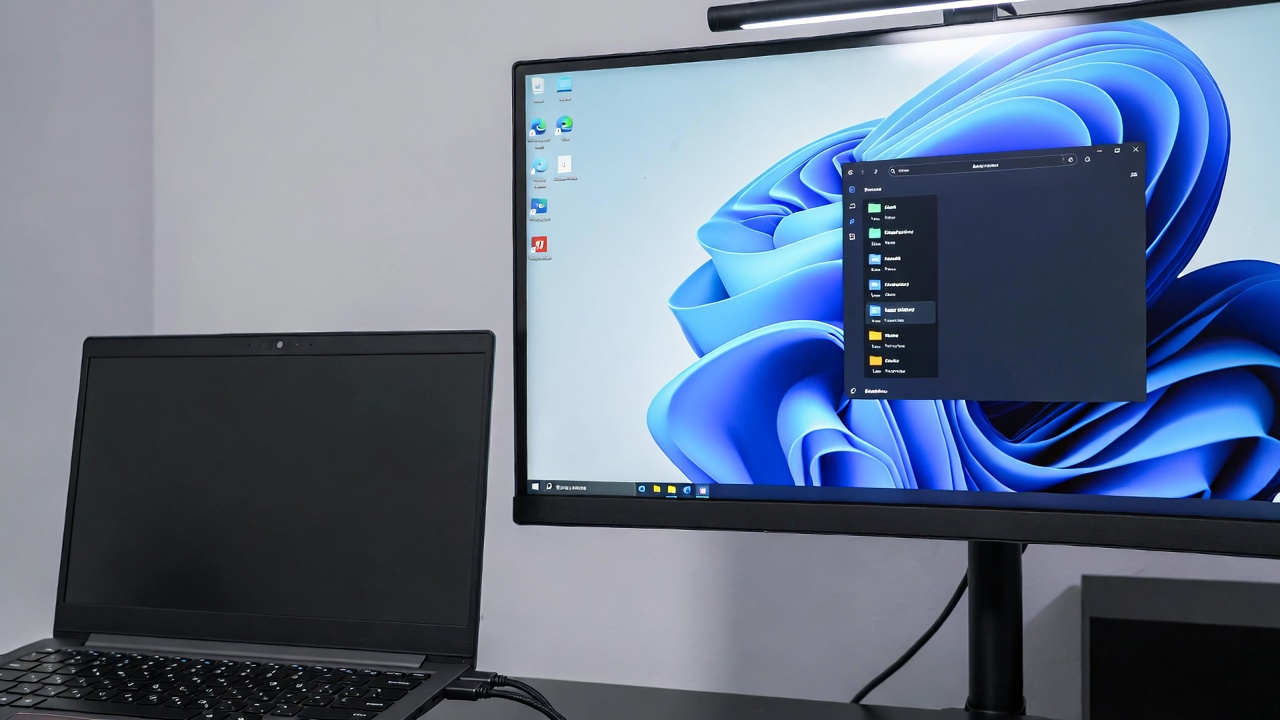
Refresh rate also deserves attention. While gamers chase 240Hz, home office workers benefit from 75Hz or 90Hz panels—they make cursor movement and scrolling noticeably smoother without draining your budget. And don’t ignore ergonomics: height-adjustable stands save your neck from hours of looking down at a laptop screen.
Best Overall: Dell UltraSharp U4323QE
The Dell UltraSharp U4323QE is massive—42.5 inches of 4K real estate. It’s like having four 21-inch monitors without the bezels. For spreadsheet work, video editing, or keeping multiple windows open side-by-side, nothing beats this. The IPS panel delivers accurate colors out of the box (covering 95% DCI-P3), and the built-in KVM switch lets you control two computers with one keyboard and mouse.
What it does well: The USB-C port delivers 90W of power, enough for most laptops. The stand is rock-solid with full height adjustment. Picture-by-picture mode works flawlessly for multitasking across two sources.
The trade-off: You need a deep desk—this thing is a beast. At this size, pixel density isn’t as sharp as smaller 4K monitors, so text isn’t quite as crisp as on a 32-inch 4K panel. It’s also overkill if you primarily work in one window at a time. 📌 Don’t forget to save this post if you’re considering ultra-large monitors.
Best USB-C: LG 32UN880-B UltraFine Display Ergo
LG’s Ergo monitor has been a favorite for years, and the 2026 version refines what already worked. The 32-inch 4K IPS panel is sharp, color-accurate, and bright enough for well-lit rooms. But the real star is the arm—it clamps to your desk and gives you full range of motion. Push it back when you need space, pull it forward for close work, or swivel it to share your screen with a colleague.
What it does well: Single USB-C cable handles video, data, and 60W charging. The on-screen control software is actually useful for splitting windows. Colors are consistent and adjustable.
The trade-off: 60W charging won’t fully power a 16-inch MacBook Pro under heavy load—you’ll still drain battery slowly. The speakers are tinny; plan to use headphones or external speakers. For more laptop compatibility tips, check out our laptop accessories guide.
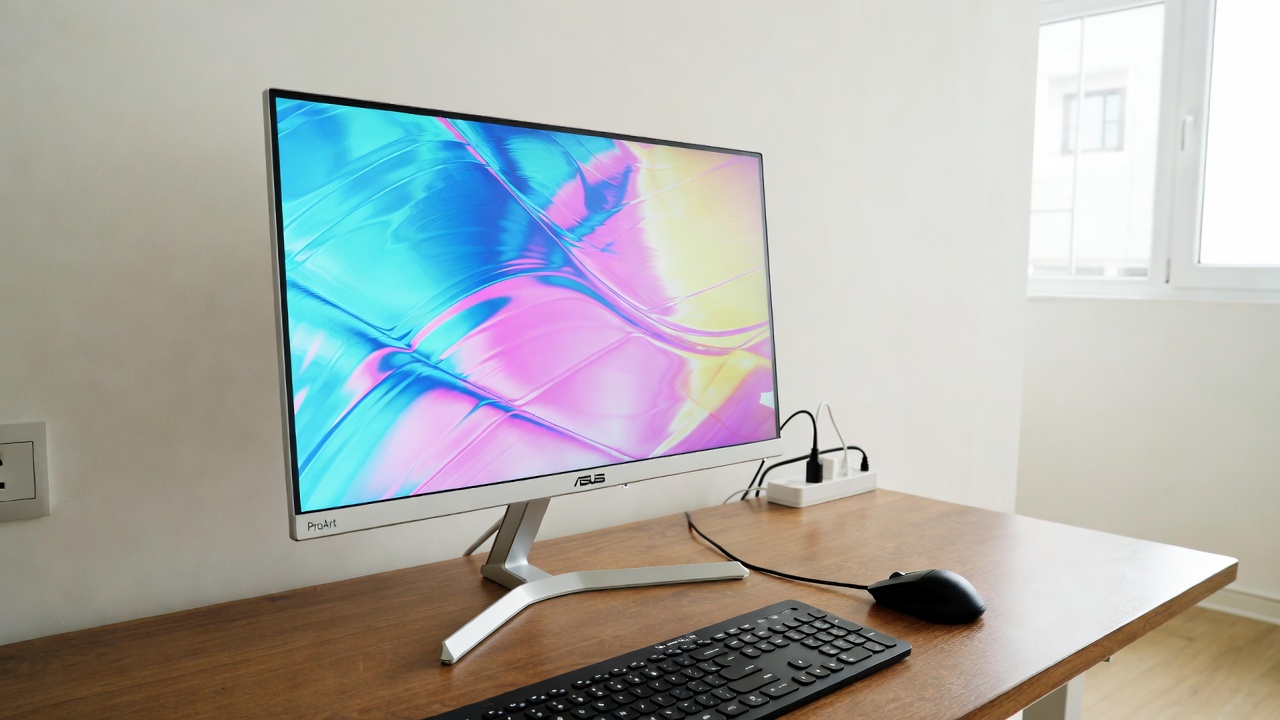
Best Budget: ASUS ProArt PA278CV
Not everyone needs 4K, and the ASUS ProArt PA278CV proves that 1440p is still a sweet spot. At 27 inches with 109 pixels per inch, text is sharp without the scaling headaches of 4K on Windows. This monitor is aimed at creators, so color accuracy is excellent right out of the box—it covers 100% sRGB and comes factory calibrated.
What it does well: USB-C with 65W charging, four USB-A ports for peripherals, and a fully adjustable stand. The price hovers around $300–$350, making it accessible without sacrificing quality.
The trade-off: It’s “only” 75Hz, so scrolling isn’t buttery smooth. The bezels are thicker than premium models. And if you absolutely need 4K for photo work, step up to the 4K version. ❤️ Bookmark this post to try these ideas later if you’re comparing budget options.
Best for Mac Users: Apple Studio Display
Apple’s Studio Display remains the gold standard for Mac integration. The 5K resolution (5120×2880) gives you “Retina” sharpness—text looks like it’s printed on paper. The six-speaker sound system with spatial audio is genuinely impressive for a monitor, and the 12MP webcam with Center Stage works seamlessly with FaceTime and Zoom.
What it does well: One Thunderbolt 3 cable connects and charges your Mac with 96W of power. The build quality is typical Apple—aluminum and glass that feels premium. The camera and mic array are the best you’ll find built into any monitor.
The trade-off: The price starts at $1,599, and the stand is a separate cost if you want height adjustment (or you can use a VESA mount). It’s 60Hz only, which feels dated at this price. And it only works optimally with Macs—Windows support is limited. For more on Mac compatibility, visit our OS guides section.
Best Ultrawide: LG 40WP95C-W
Ultrawide monitors have a learning curve, but once you go curved 21:9, it’s hard to go back. The LG 40WP95C-W is a 40-inch 5K2K beast (5120×2160)—basically a 32-inch 4K monitor stretched wider. It’s perfect for timeline-based work (video editing, music production) or having three documents side-by-side without overlap.
What it does well: Thunderbolt 4 ports with 96W charging, excellent color accuracy, and a subtle 2500R curve that immerses without distorting. The IPS Black technology delivers deeper blacks than standard IPS.
The trade-off: It’s expensive (around $2,000) and requires a powerful graphics card to drive all those pixels. Some apps don’t scale well on ultrawide resolutions. And it’s heavy—make sure your desk can handle the clamp mount or stand.
Connectivity and Setup Tips
Getting the best monitor for home office 2026 is only half the battle—setting it up correctly matters just as much. Position the top of the screen at or slightly below eye level, about an arm’s length away. Enable Night Light or similar blue light reduction after sunset, even on eye-care certified displays. And consider a smart lighting setup behind the monitor to reduce eye strain in dark rooms.
If you’re using a laptop, invest in a quality USB-C hub or monitor with built-in ports. Running multiple devices? Look for KVM switches built into the monitor—the Dell U4323QE and LG 40WP95C both handle this well. For multi-monitor setups, try to match panel types and color profiles to avoid visual mismatches.
According to display specifications from TFT Central, panel uniformity varies significantly between units, so buy from retailers with good return policies. And don’t assume more expensive always means better—some premium features like built-in streaming apps or smart TV functionality add cost without improving work productivity.
Which One Should You Buy?
If you want the absolute best all-around experience and have the desk space, the Dell UltraSharp U4323QE transforms how you work with its massive 4K canvas. For Mac users who prioritize sharpness and integration, the Apple Studio Display is worth the premium despite its limitations. Budget-conscious buyers should grab the ASUS ProArt PA278CV—it’s the best value in this lineup.
💡 Save this guide for later—monitor prices fluctuate throughout the year, and having these models on your radar helps you spot genuine deals when they appear.
Remember: the right monitor pays for itself in reduced eye strain and faster workflow. Test your shortlist if possible, pay attention to return policies, and don’t compromise on ergonomics. Your future self—especially at 5 PM after eight hours of work—will thank you.
- Best Cheap Smartwatch Under $50
 Best Cheap Smartwatch Under $50: 5 Reliable Picks for 2026 By Sanso Uka If you’re hunting for the best… Read more: Best Cheap Smartwatch Under $50
 - Best Dash Cams of 2026
 Best Dash Cams of 2026: Top Picks for Every Driver and Budget By Wanderson Nogueira Martins Choosing the best… Read more: Best Dash Cams of 2026
 - How to Transfer Data to New Phone
 How to Transfer Data to a New Phone: A Step-by-Step Guide for 2026 By Sanso Uka Upgrading to a… Read more: How to Transfer Data to New Phone
 - Senior-Friendly Smartphones 2026
 Senior-Friendly Smartphones 2026: Best Overall Picks for Every Budget By Sanso Uka Senior-friendly smartphones in 2026 have come a… Read more: Senior-Friendly Smartphones 2026
 - Best Mechanical Keyboards in 2026
 Best Mechanical Keyboards in 2026 Best Mechanical Keyboards in 2026: Top Picks for Every Budget and Use Case By… Read more: Best Mechanical Keyboards in 2026
 - Best Monitor for Home Office 2026
 Best Monitor for Home Office 2026: Expert Picks & Buying Guide By Sanso Uka Your monitor is the window… Read more: Best Monitor for Home Office 2026
 - How to Extend Smartphone Battery Life
 How to Extend Smartphone Battery Life: 12 Practical Tips That Actually Work By Sanso Uka You unplugged your phone… Read more: How to Extend Smartphone Battery Life
 - Best E-Readers in 2026
 Best E-Readers in 2026: Which One Is Actually Worth Buying? Best E-Readers in 2026: Which One Is Actually Worth… Read more: Best E-Readers in 2026
 - Refurbished vs New Laptop
 Refurbished vs New Laptop: Which Should You Buy in 2026? By Sanso Uka When you’re in the market for… Read more: Refurbished vs New Laptop
 - Best Gaming Headsets Under $100
 Best Gaming Headsets Under $100 in 2026: Top Picks for Every Platform By Sanso Uka Finding the best gaming… Read more: Best Gaming Headsets Under $100
 - How Long Do Laptops Last
 How Long Do Laptops Really Last? A Practical Guide to Lifespan By Sanso Uka If you are shopping for… Read more: How Long Do Laptops Last
 - Best Portable Charger 2026
 Best Portable Charger in 2026: Top Power Banks for Every Budget and Use Case By Wanderson Nogueira Martins Finding… Read more: Best Portable Charger 2026